

The Snippets screen
Once the plugin is on, click Snippets in the sidebar under Tools. The list shows each snippet with its label, a tag, the command and an optional description. The first time the plugin loads, it adds a few examples such as Disk usage (df -h) and Open ports (ss -tlnp).
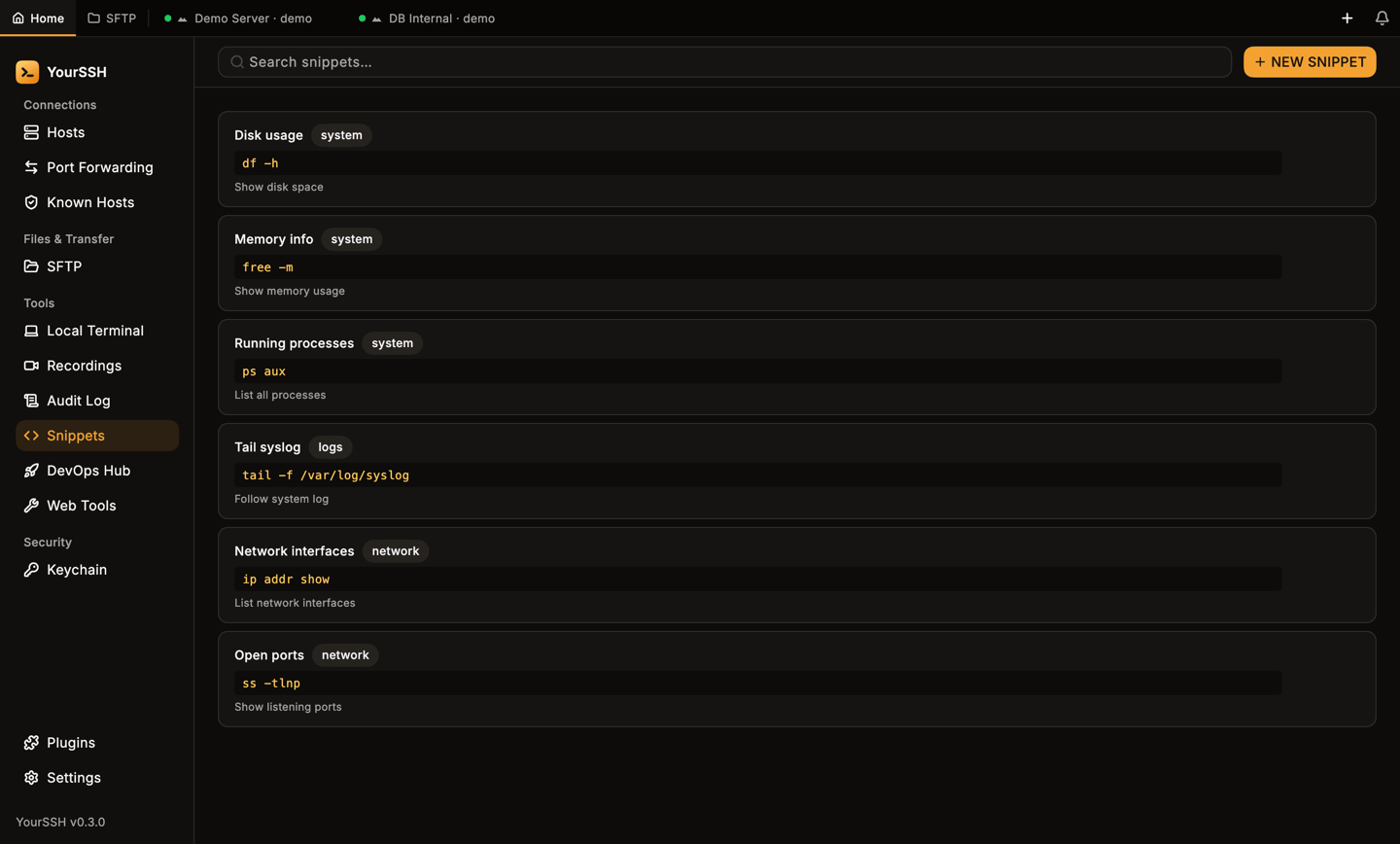
The Snippets screen with the built-in examples.
Add a snippet
1
Open the form
Click NEW SNIPPET.
2
Fill in the fields
Enter a Label and a Command. Both are required. Description (optional) and Tag (optional) are for your own organization. Snippets with the same tag are grouped together in the terminal panel.
3
Save
Click Add Snippet.
Work with a snippet
Hover a snippet to show its buttons:
If no SSH session is active, YourSSH shows a notice and sends nothing.
The Snippets screen can add and delete snippets but has no edit form. To change a snippet, delete it and add a new one.
The terminal side panel
You don’t have to leave the terminal to use snippets. In a connected session, click Toggle Snippets Panel in the terminal header. The panel opens beside the terminal without resizing the session.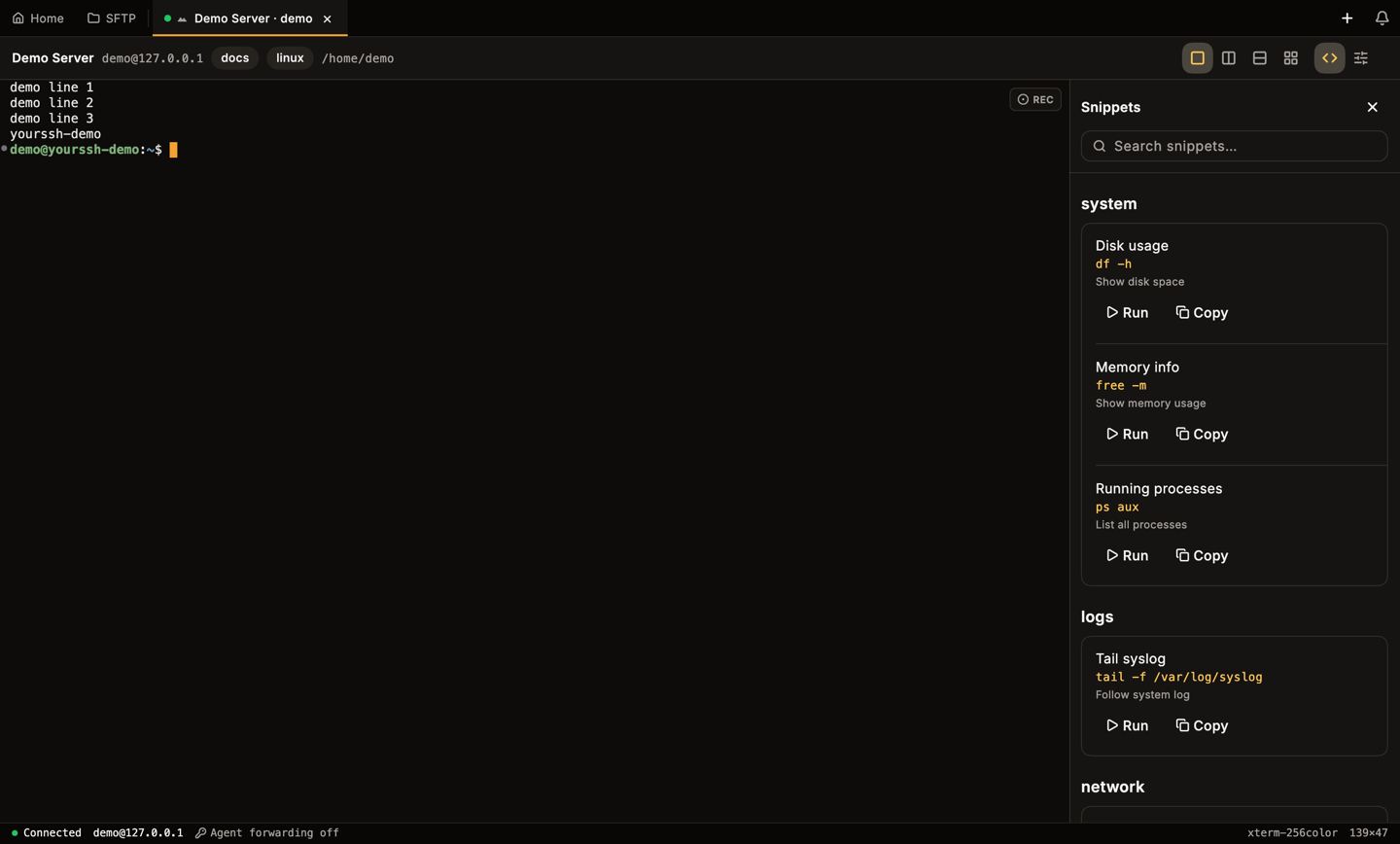
The Snippets panel beside a terminal. Snippets are grouped by tag.
- Use Search snippets… to filter.
- Click Run to type the command into the focused session and press Enter. The panel shows No active SSH pane selected when there is no running session to receive it.
- Click Copy to copy the command instead.
- Click the close button to hide the panel.
Snippets on mobile
The Snippets tab in the Android app lists the same kind of snippets. Chips at the top filter by tag, with All showing everything. Tap a snippet to run it in the active session. The header shows which host receives it, or No active session.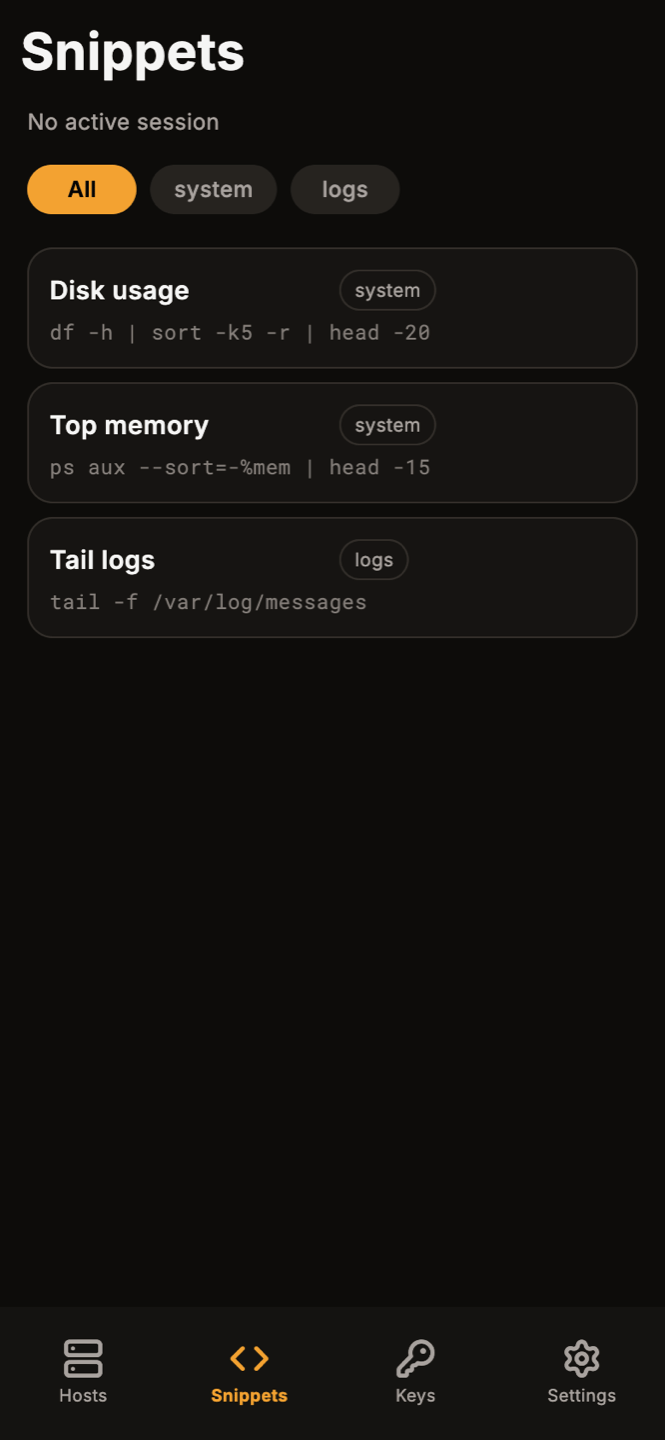
The Snippets tab in the Android app.
Related pages
Terminal
Sessions, split view and the header.
Bulk actions
Run a command on many hosts at once.