

Add an RDP host
1
Open the host editor
On the hosts dashboard, click New host, or open an existing host and click Edit.
2
Switch to RDP
At the top of the editor, select RDP in the SSH / RDP / VNC switch. The port changes to
3389. A custom port you already typed is kept.3
Fill in the connection
Enter the hostname or IP, Username and Password. Domain is optional and only needed for Windows domain accounts.
4
Choose the RDP options
Set RDP SECURITY, CLIPBOARD and SSH TUNNEL as described below, then click Save.
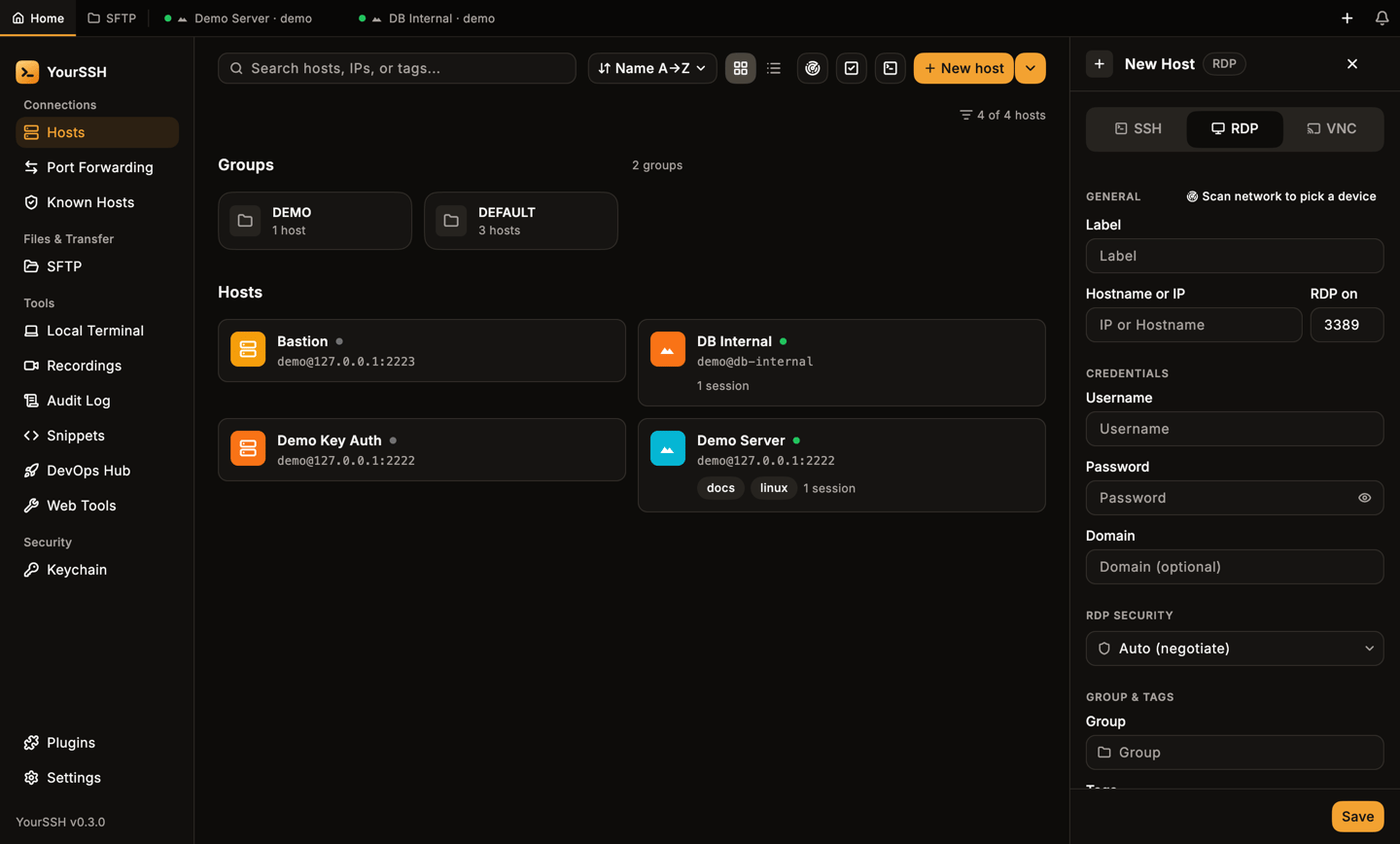
The host editor in RDP mode: port 3389, credentials, domain and RDP security.
RDP security
Clipboard
Accept remote clipboard controls whether the remote desktop may replace your local clipboard. It is on by default. The remote text is capped at 1 MiB. Turn it off for hosts you don’t trust.SSH tunnel
SSH TUNNEL routes the RDP connection through one of your saved SSH hosts. Choose Direct connection (the default) or via a host. The selector only appears when you have at least one other SSH host saved. The list only shows SSH hosts. See Hosts for connection chains.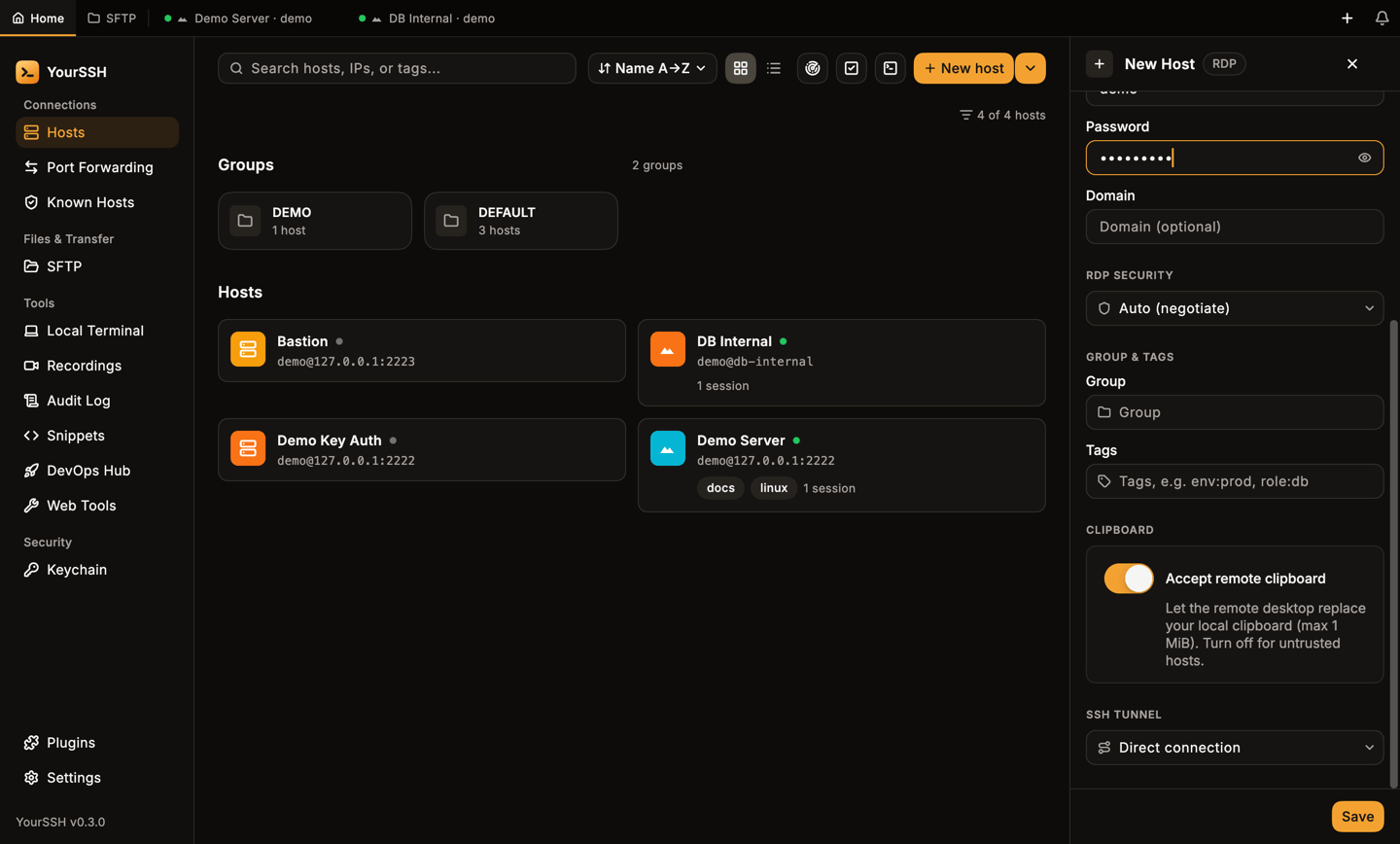
RDP-only options: RDP security, remote clipboard and the SSH tunnel.
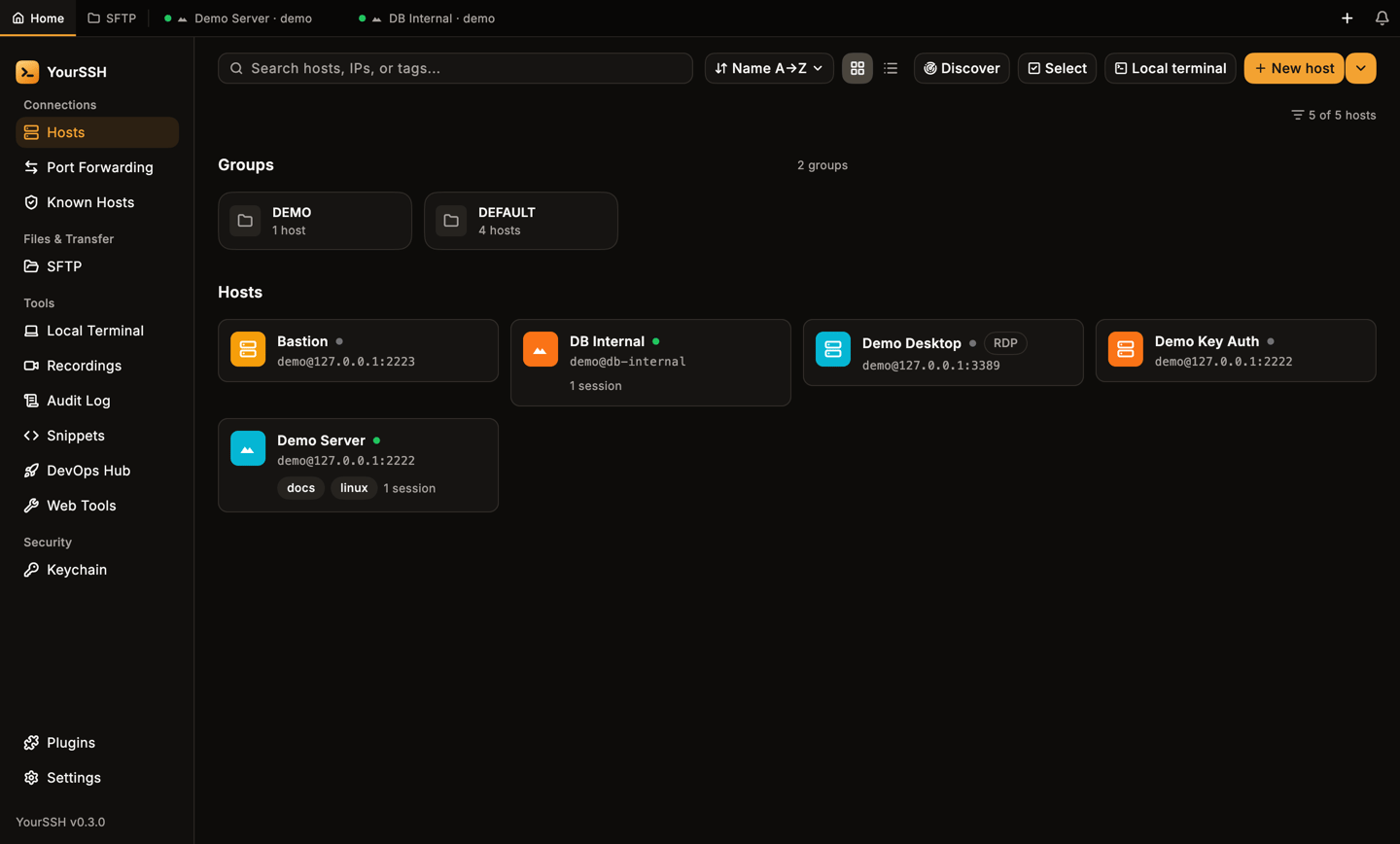
The RDP host card shows an RDP badge.
Connect and trust the certificate
Click the host card to connect. The first time you connect to a server, YourSSH stops before it sends any credentials and shows Trust RDP certificate? with the server address and the certificate’s SHA-256 fingerprint.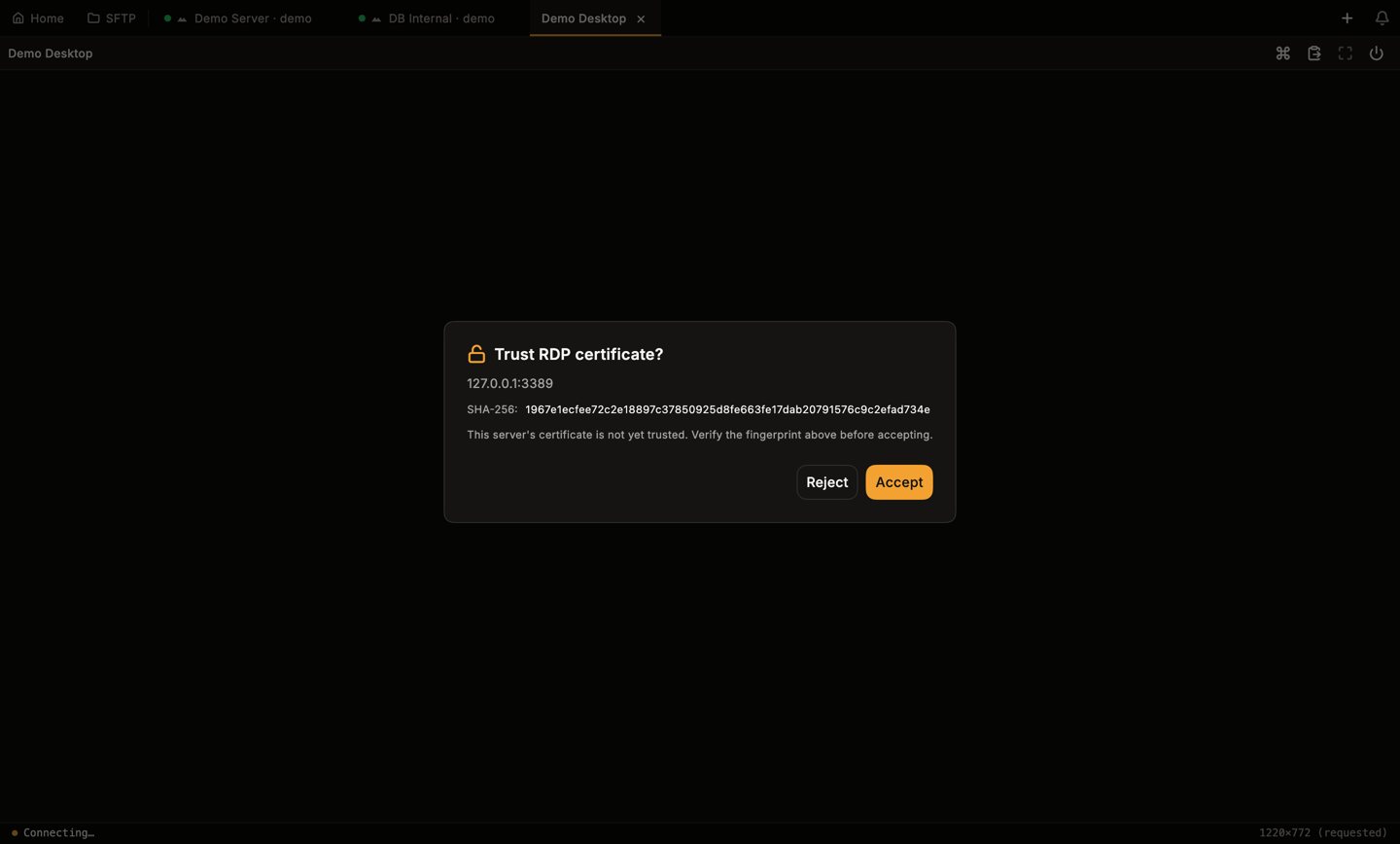
The first connect asks you to verify the server certificate.
- Click Accept to pin the certificate and continue. YourSSH reconnects and signs in.
- Click Reject to cancel. Nothing was sent to the server.
Use the session
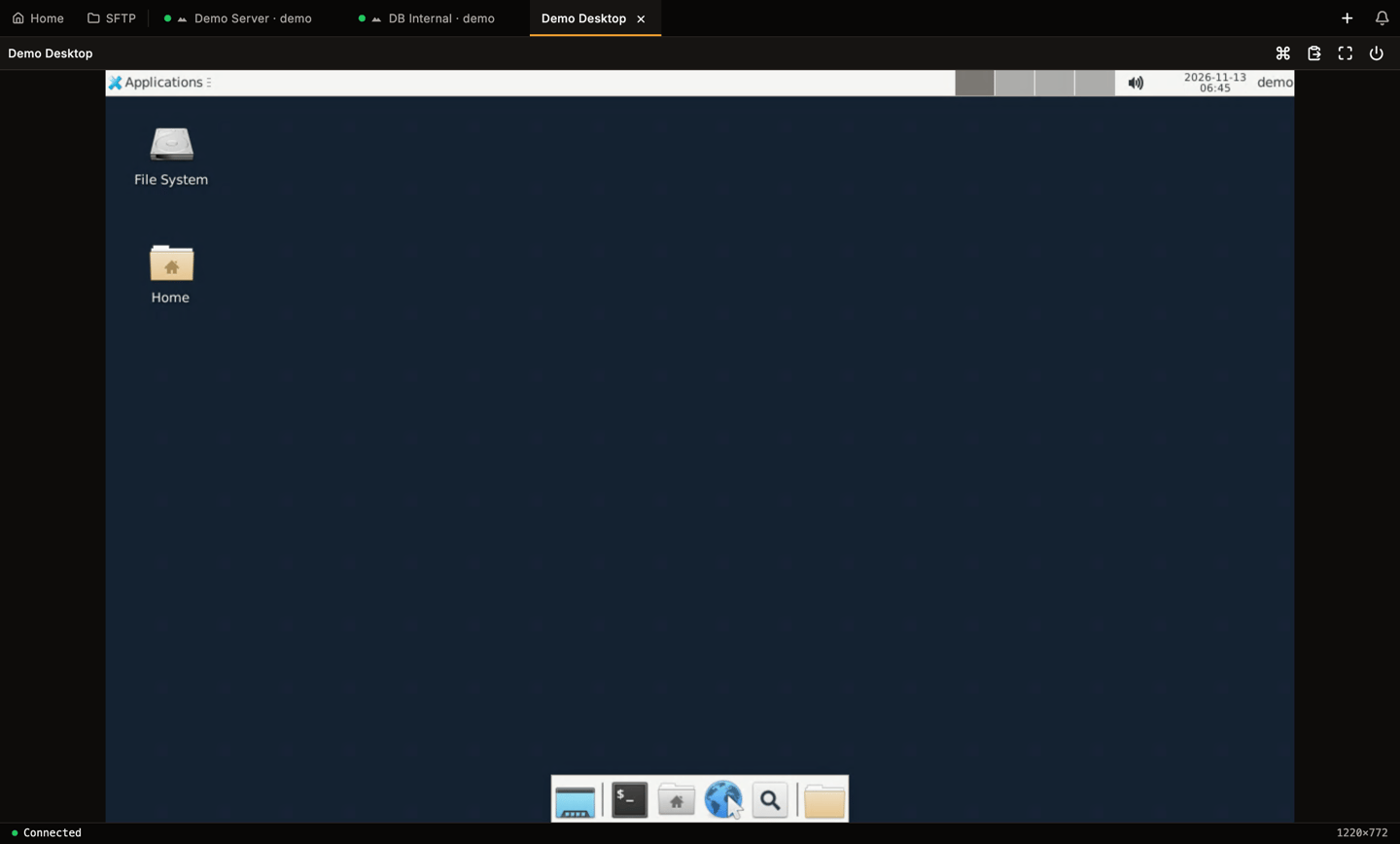
A connected RDP session with the toolbar on the right.
- Keyboard and mouse. Keys, left, right and middle clicks and scrolling go to the remote desktop. App shortcuts are not typed into it.
- Clipboard. Text copied on the remote desktop lands in your local clipboard, if Accept remote clipboard is on. YourSSH also sends your local clipboard when the RDP view gains focus, but only if the text changed since the last push.
- Size. The desktop size follows your window when you connect. The status bar shows the negotiated size.
Fullscreen
Click Fullscreen in the toolbar. The tab bar and sidebar disappear and the remote desktop fills the screen. A small pill with the host name and the toolbar buttons shows for a moment and then hides. Move the mouse to the top edge of the screen to bring it back. Use its exit button to leave fullscreen.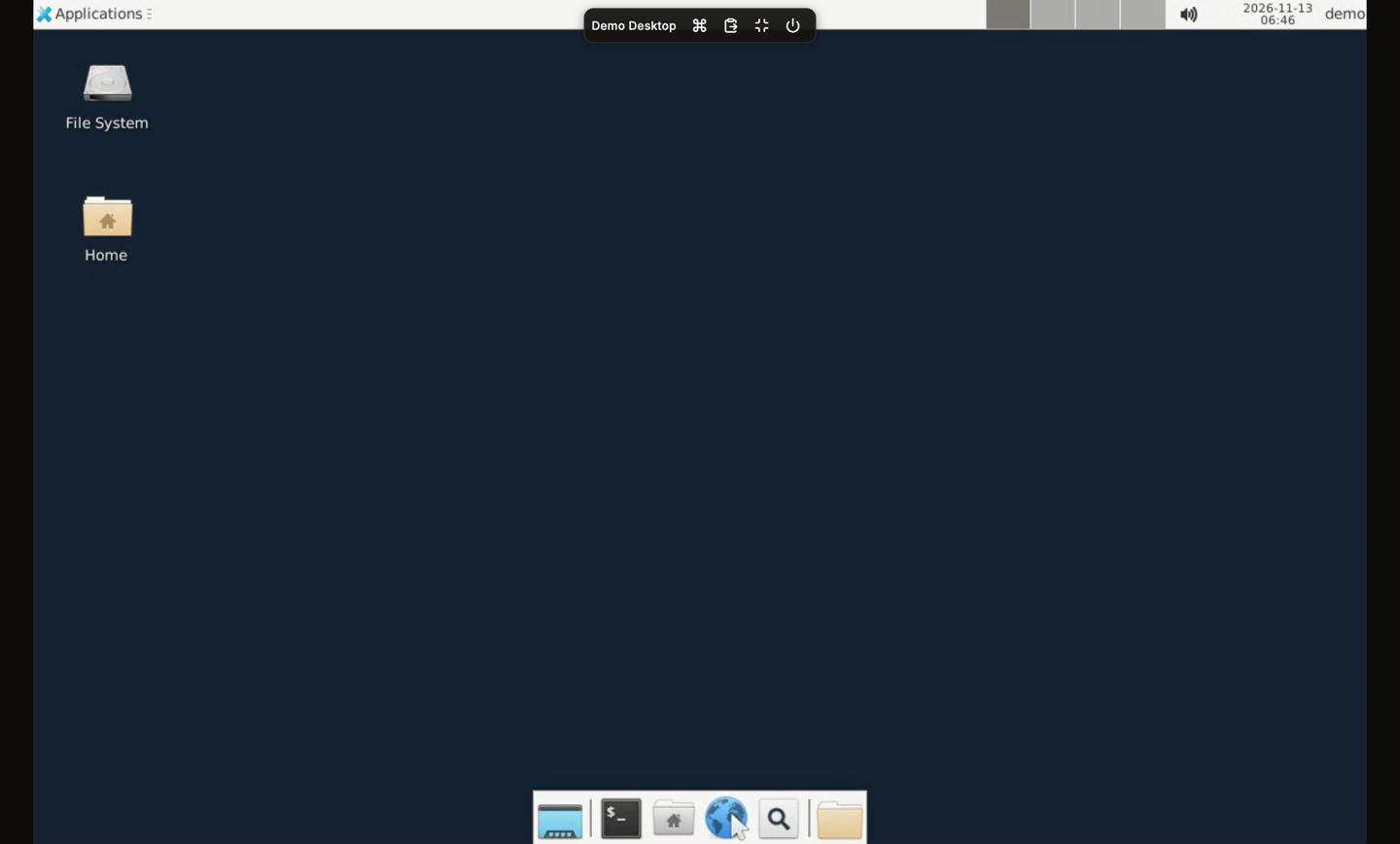
Hover the top edge in fullscreen to show the pill. It carries Ctrl+Alt+Del, clipboard, exit fullscreen and disconnect.
Disconnects and Retry
When the session ends, the tab shows the reason and a Retry button. This happens when you click Disconnect, when the server ends the session, or when the connection drops. Click Retry to connect again.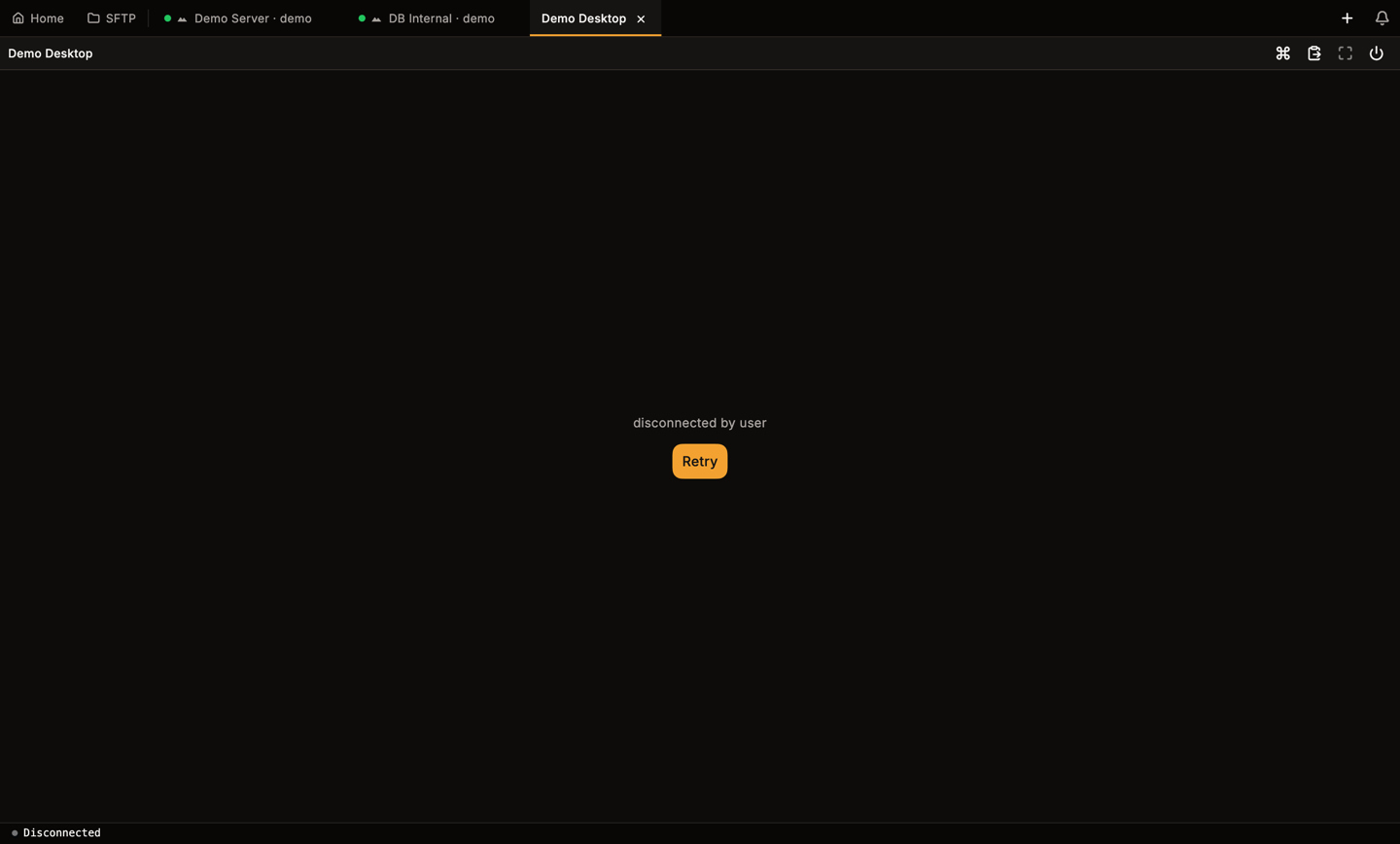
After you disconnect, the tab keeps the reason and offers Retry.
Not supported
- Audio redirection.
- Drive and printer redirection.
- Changing the desktop size while connected. Reconnect to apply a new window size.
- Recording, split view, the input bar and snippets. These are SSH-only and hidden on RDP tabs.
Related pages
VNC remote desktop
Connect to Linux VNC servers.
Hosts
Add, group and tag hosts.