

Set up a provider
The AI button stays hidden in the terminal header until at least one provider has a key.1
Open the settings
Go to Settings and find the AI providers section.
2
Paste your API key
Paste the key into the field for Anthropic, OpenAI or Google Gemini. The key is hidden as you type. Click the eye icon to show it.
3
Pick a model
Choose a model from the Model list under the key. Each provider has its own list and default.
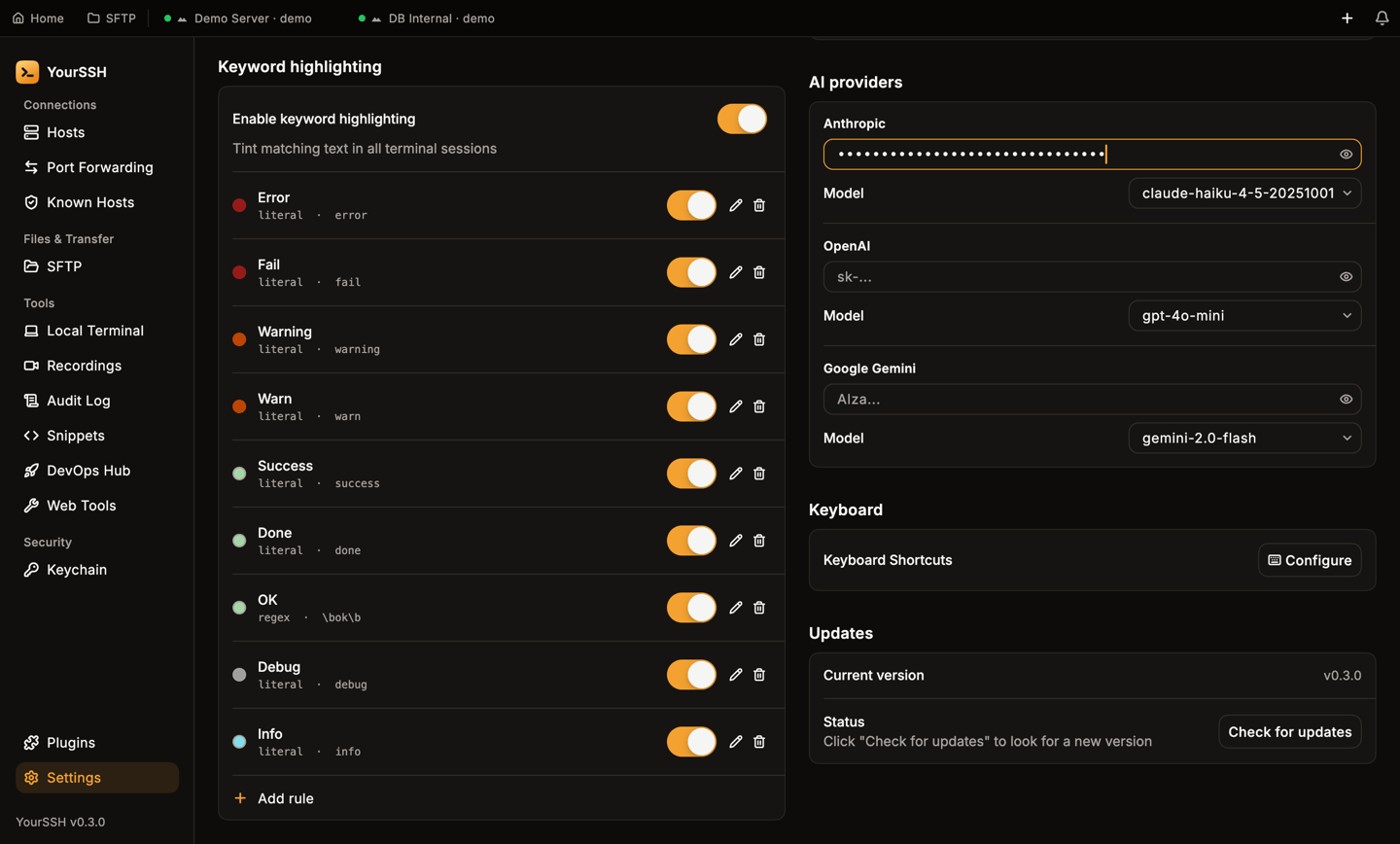
AI providers in Settings. A saved key shows as configured, and each provider has its own model.
To remove a key, click the clear button in its field.
Where keys are stored
API keys are stored in the system credential store (macOS Keychain, Windows Credential Manager), not in a plain settings file. If the store can’t be reached, YourSSH shows an error instead of saving the key somewhere less safe. Keys stay on this device. They aren’t part of sync. See Settings for other preferences.Chat in a terminal
1
Open the sidebar
In a terminal session, click AI in the terminal header. The sidebar titled AI Assistant opens on the right.
2
Choose a provider
If you configured more than one provider, pick one from the list at the top of the sidebar.
3
Ask a question
Type in Ask a command question… and press
Enter. Press Shift+Enter for a new line.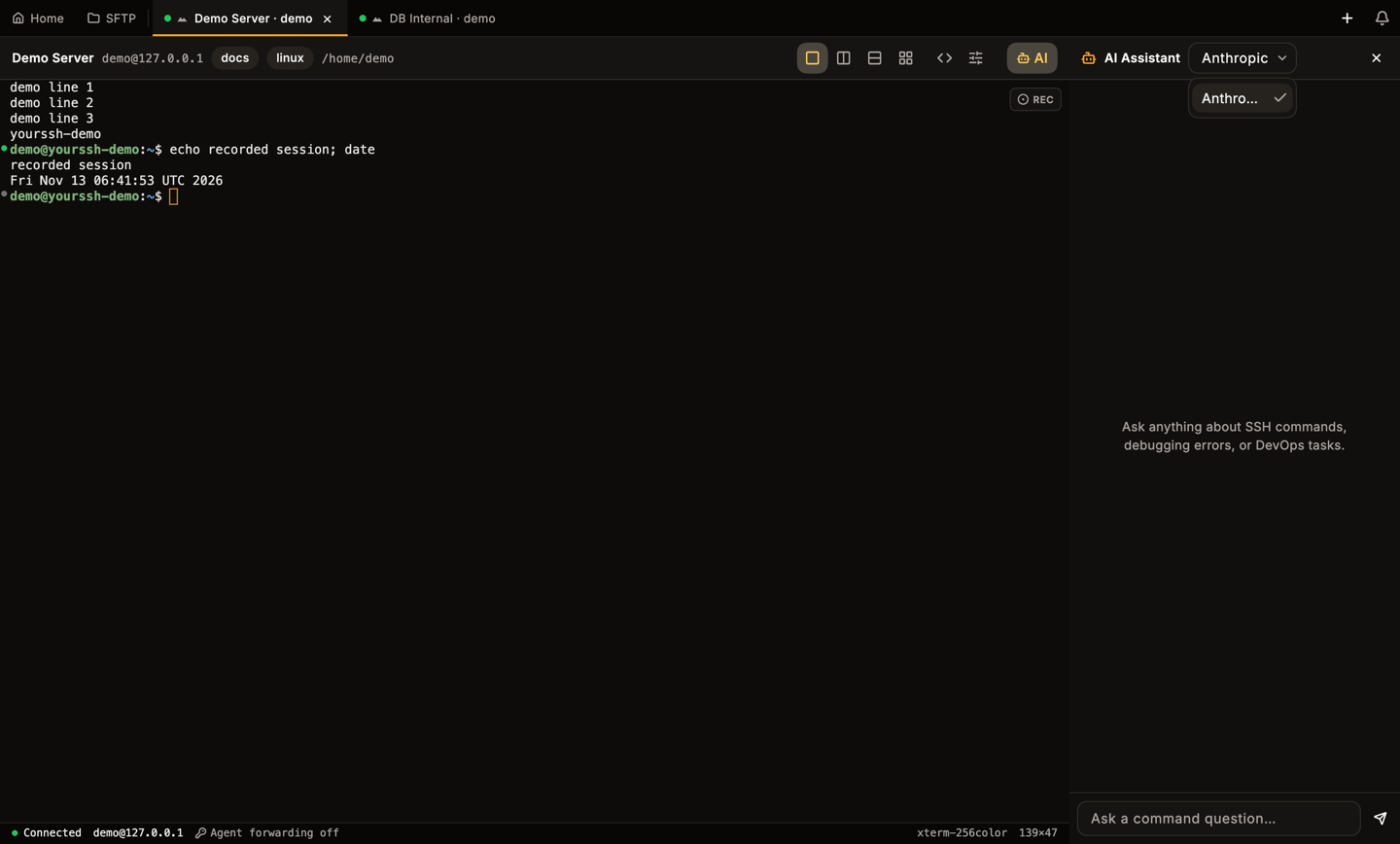
The AI Assistant sidebar beside a terminal, with the provider list open.
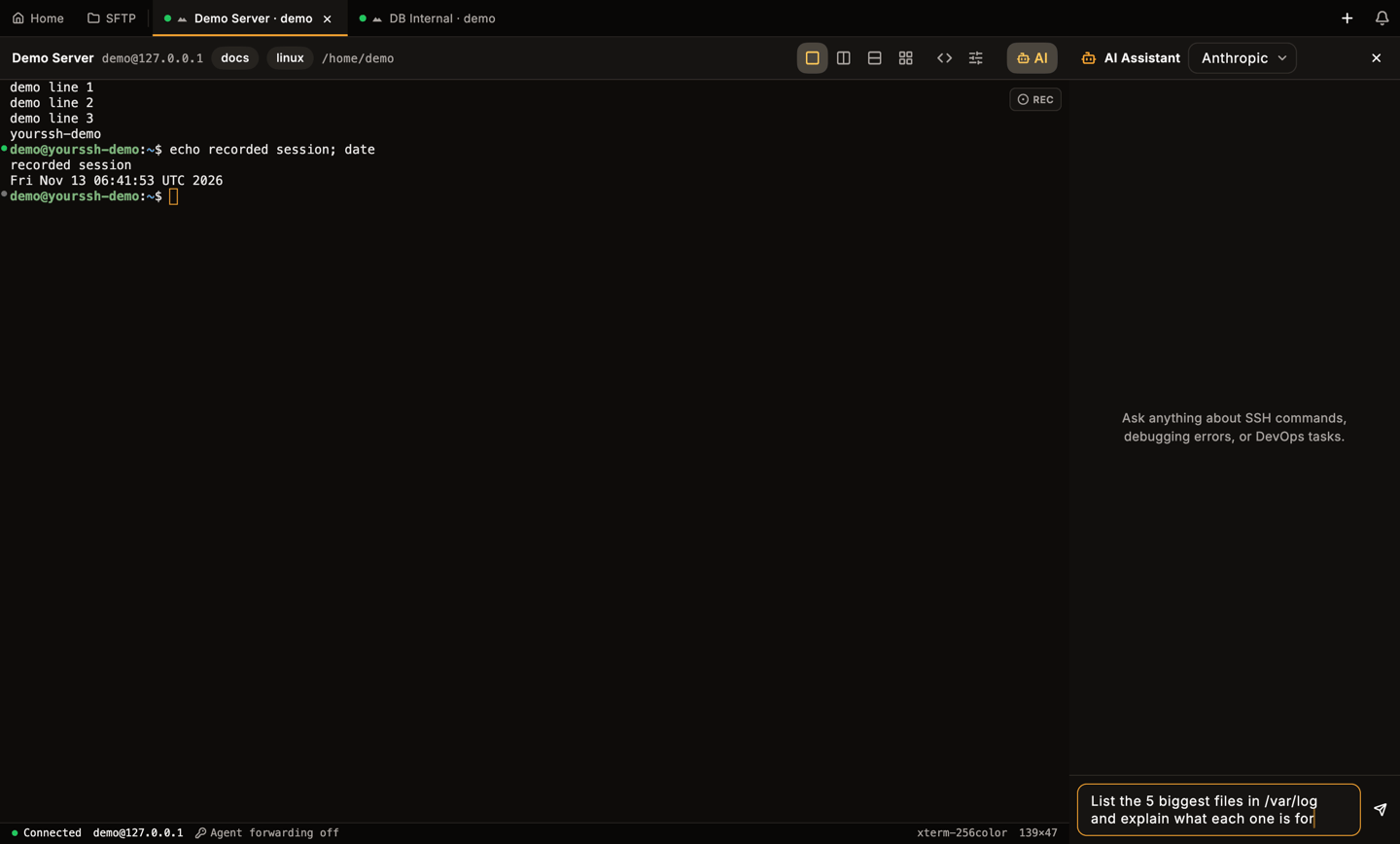
Shift+Enter adds a new line. Enter sends the message.
What is sent to the provider
- Your messages and the earlier messages of the current conversation.
- A short fixed instruction that tells the model to act as an SSH command assistant.
Tips
- Paste an error and ask what it means.
- Ask for a command, then review it before you run it. Use snippets to keep the ones you reuse.
- Switch provider from the sidebar to compare answers.
Related pages
Settings
Credential storage and other preferences.
Terminal
The terminal header and sessions.