

The hosts dashboard
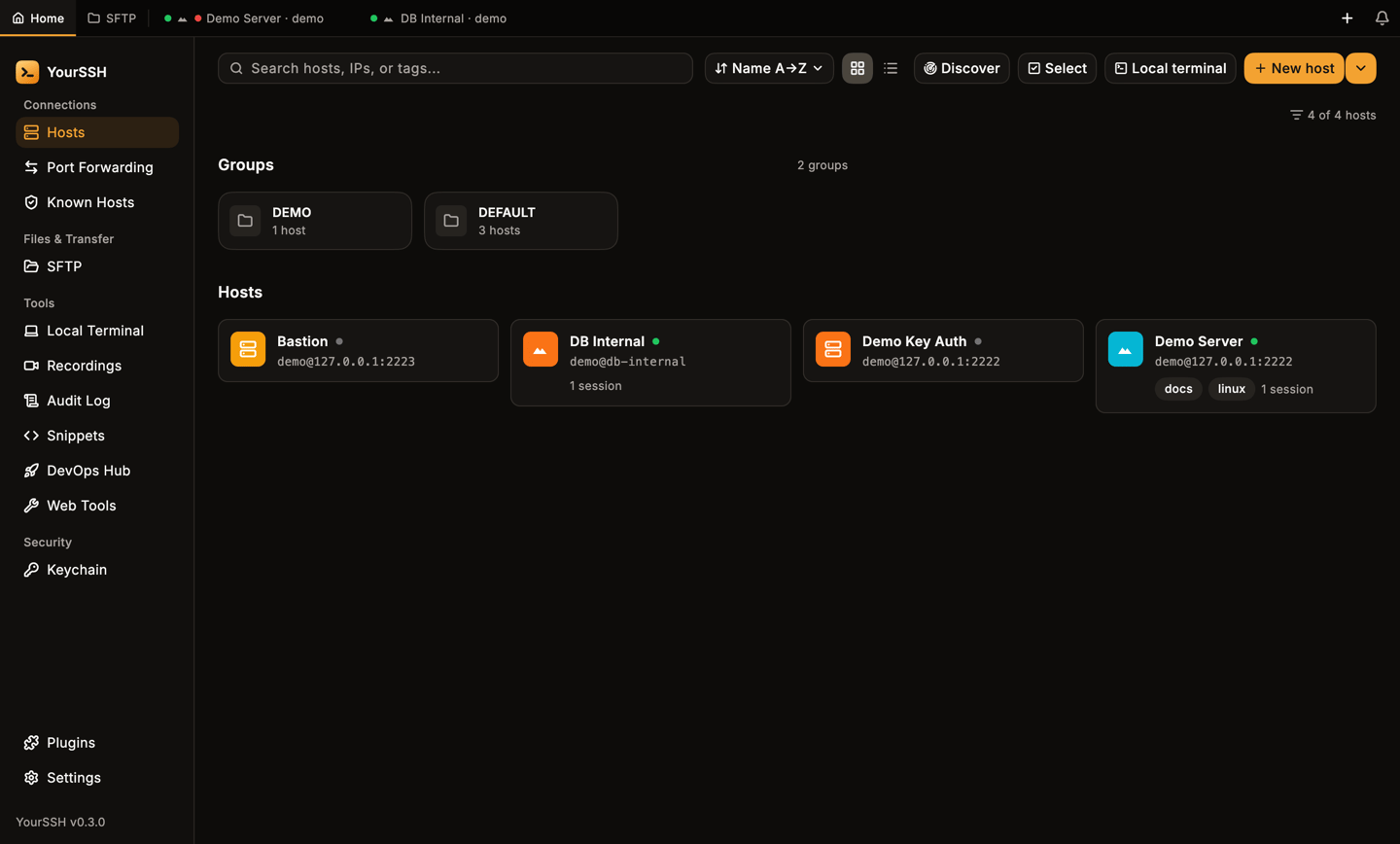
Grid view. Group cards sit above the host cards, and a dot shows whether a host has a live session.
When the window is narrower than 900 px, lower-priority controls collapse into icons or a menu.
Grid and list
Grid view shows cards. List view shows one compact row per host. Your choice, and your sort order, are remembered between launches.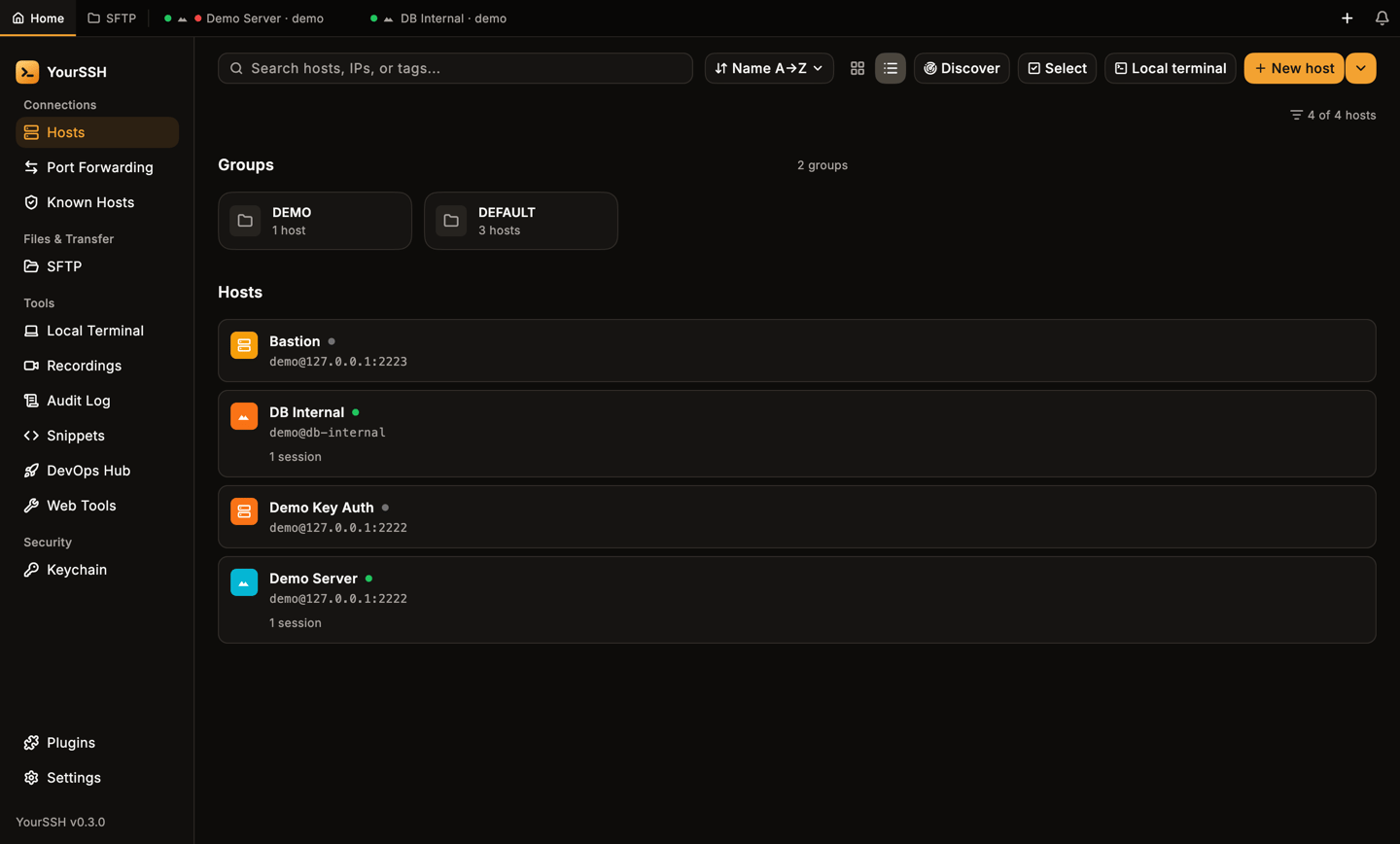
List view.
Sort
Open the sort menu and pick Name A→Z, Name Z→A, Host A→Z, Host Z→A, Newest first or Oldest first. The default is Name A→Z.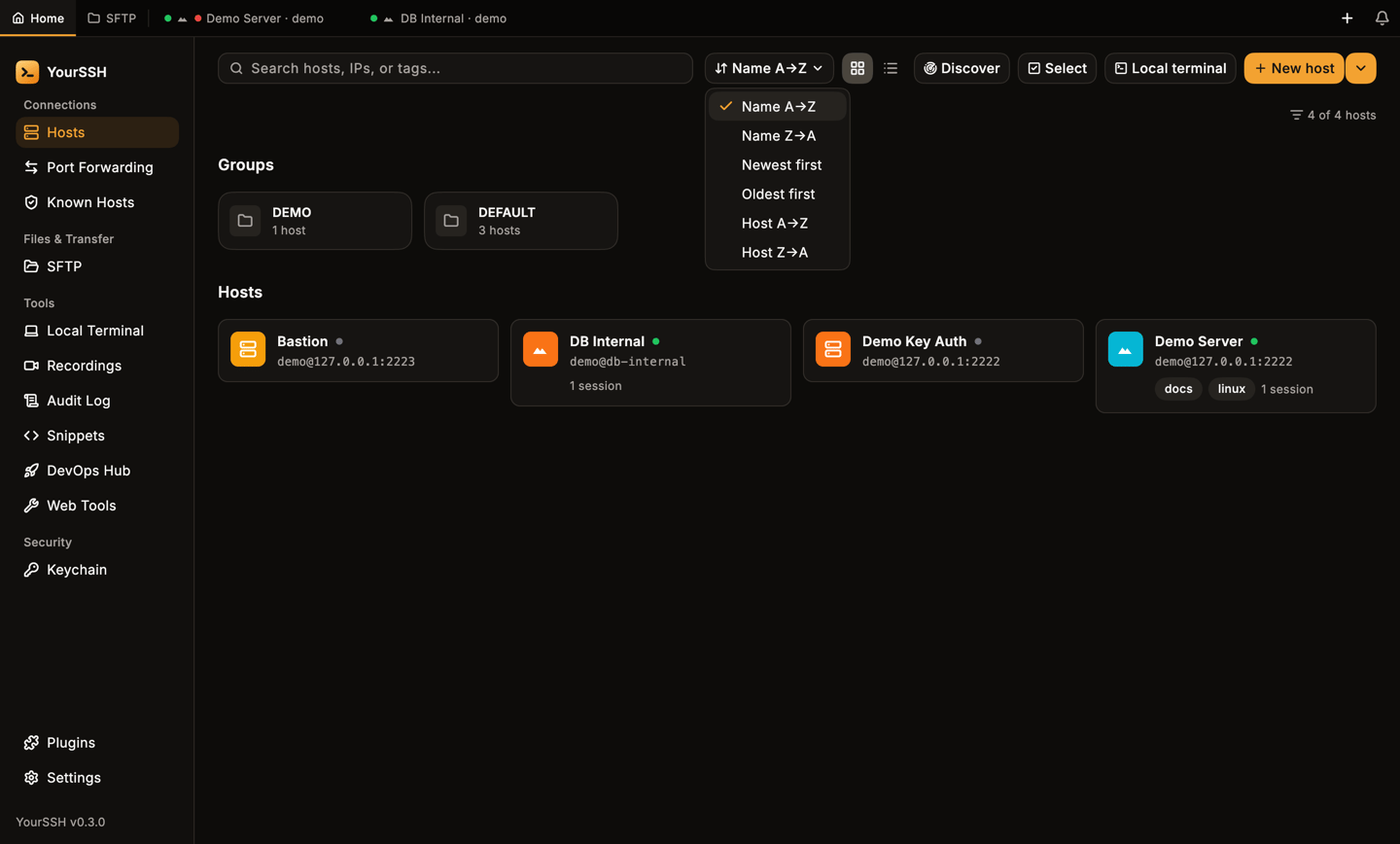
The sort menu.
Search and filter
Type in the search box to match labels, hostnames, IPs, usernames and tags. Tokens written askey:value match tags of the same form. Tag a host env:prod and search env:prod to find it. Values for the same key are ORed (env:prod env:staging), different keys are ANDed (env:prod role:db).
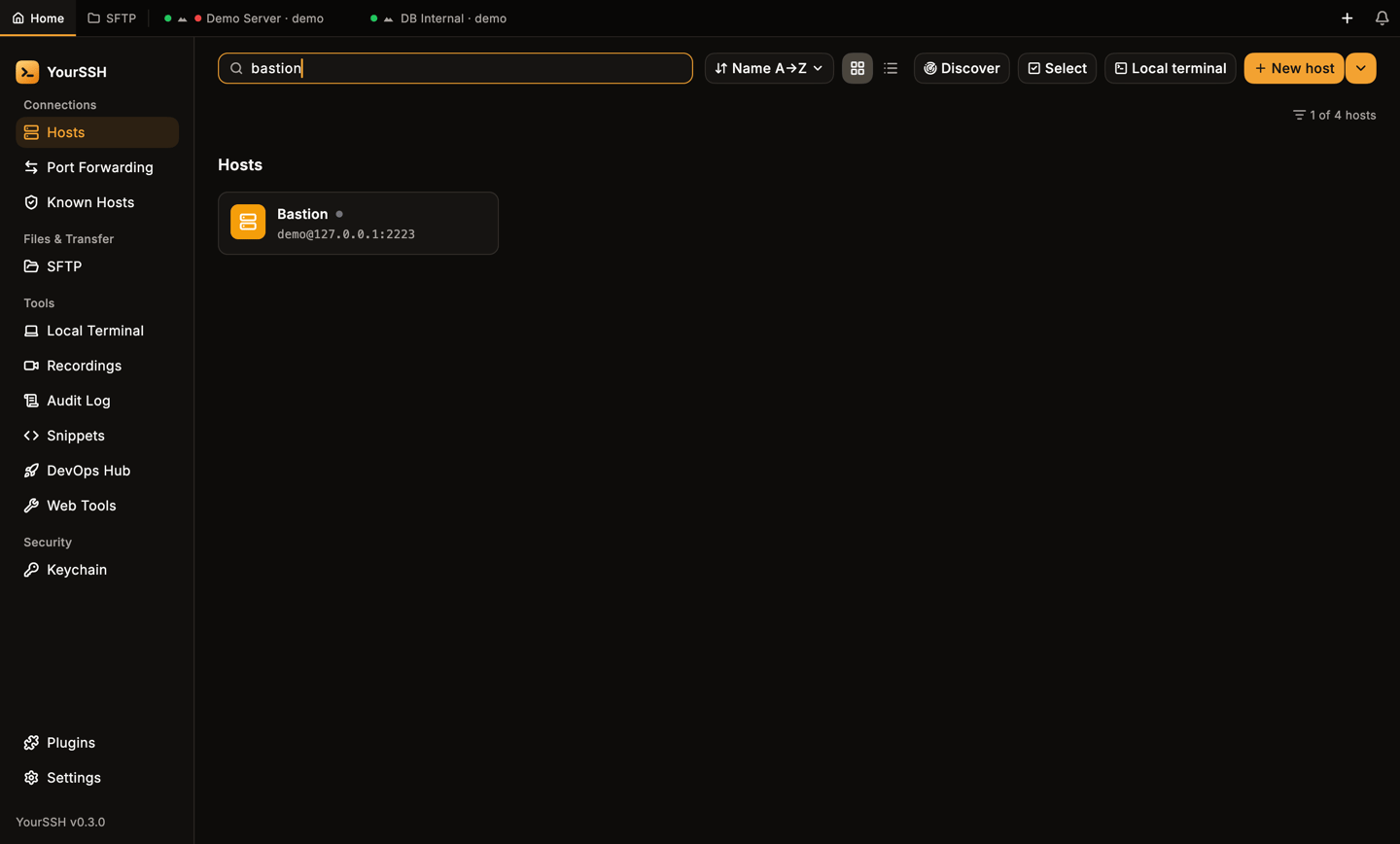
Searching for bastion.
key:value tag, a row of filter chips appears on the left of the N of M hosts counter, one chip per distinct tag. Click a chip to add or remove that tag from the search.
Groups
Click New host’s arrow, then New group, to create a group. Set a host’s Group in the editor, or choose Move to group from its card menu. Click a group card to see only its hosts. Use the group card’s options menu to delete a group.Host card menu
Double-click a card to connect. Hover it to see quick actions: Test connection (the pulse icon), SFTP (the folder icon) and the three-dot More menu.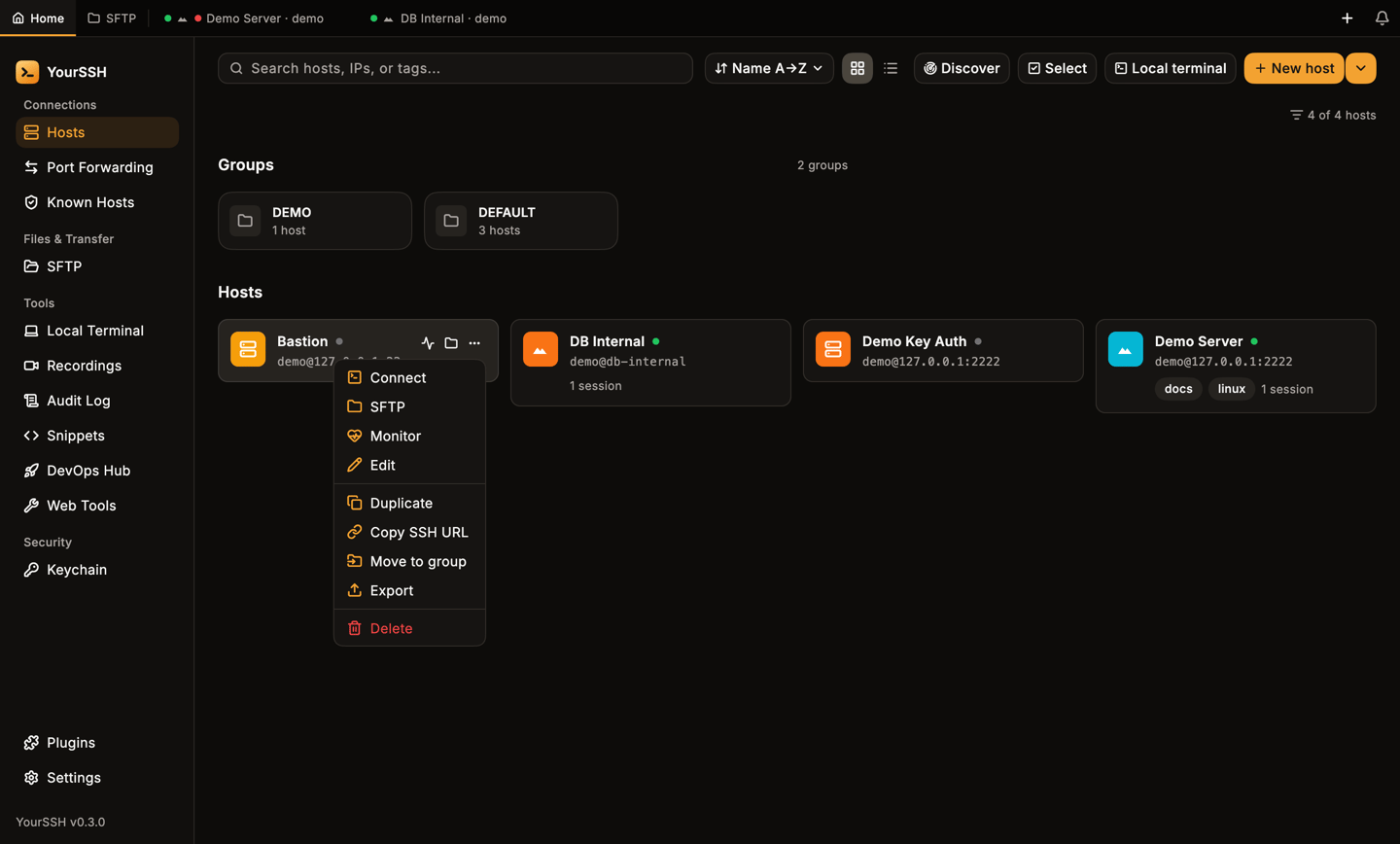
The card menu.
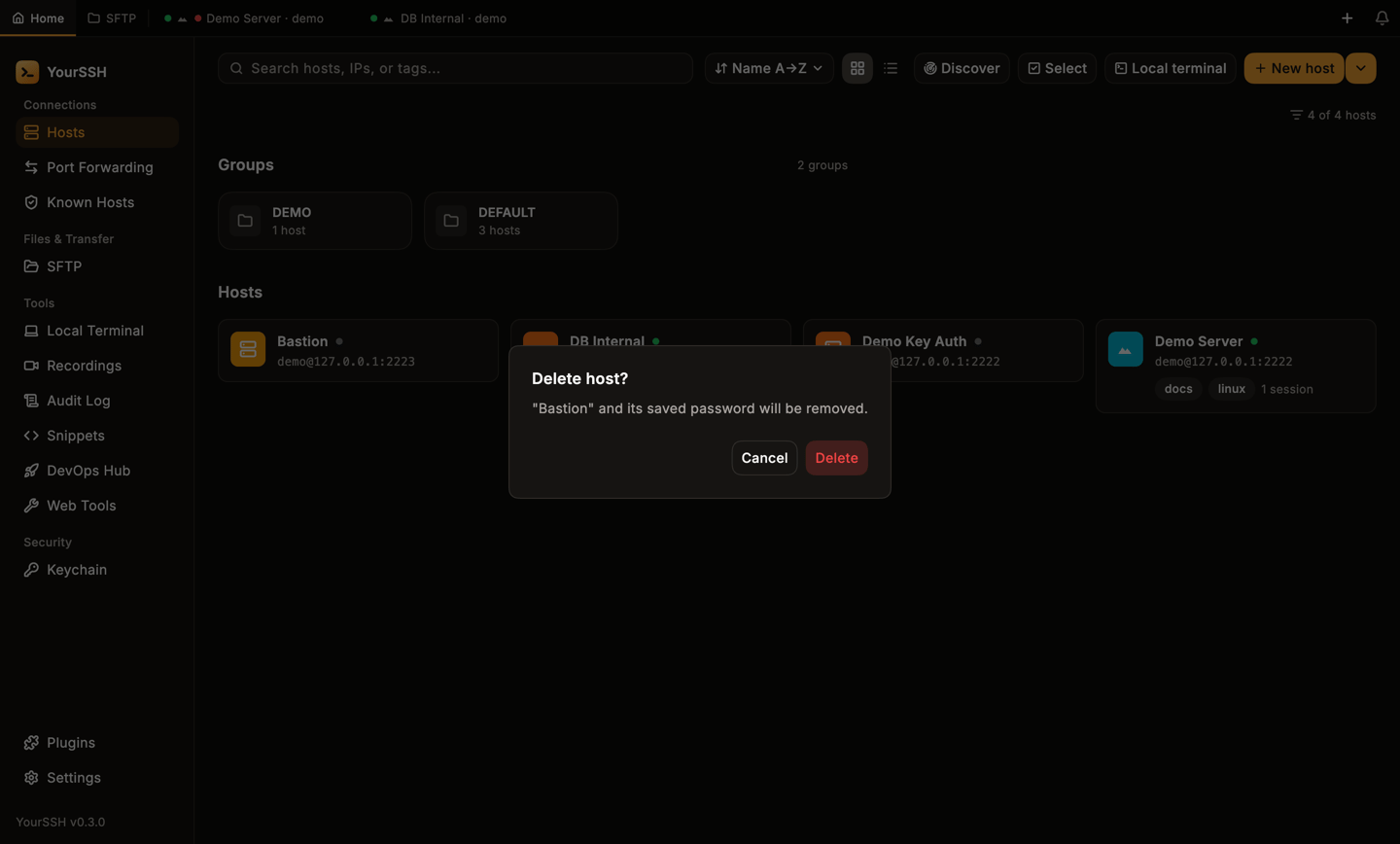
Deleting a host asks first. Cancel is selected by default.
Discover devices
Discover scans a local subnet for devices with SSH open. Pick a subnet (the app fills in your network’s), click Scan, then click Add to save a result as a host or Connect to open a session. When you create a new host, the Scan network to pick a device link in the editor opens the same scan and fills the hostname with the device you pick.Import hosts
Open the arrow next to New host and choose Import. Pick a source tab, then choose a file or paste text, click Parse and review the hosts before importing. The sources are:- ~/.ssh: OpenSSH config text. JSON host lists, such as the YourSSH export, are also recognized here.
- CSV with columns
host, label, port, username, auth_type, group, tags - PuTTY, MobaXterm, SecureCRT, WinSCP, Termius exports and Ansible INI inventories
- SSH URI: one
ssh://user@host:portper line
The host editor
Click New host, or Edit on a card. The editor opens as a side panel. PressEnter in any single-line field to save.
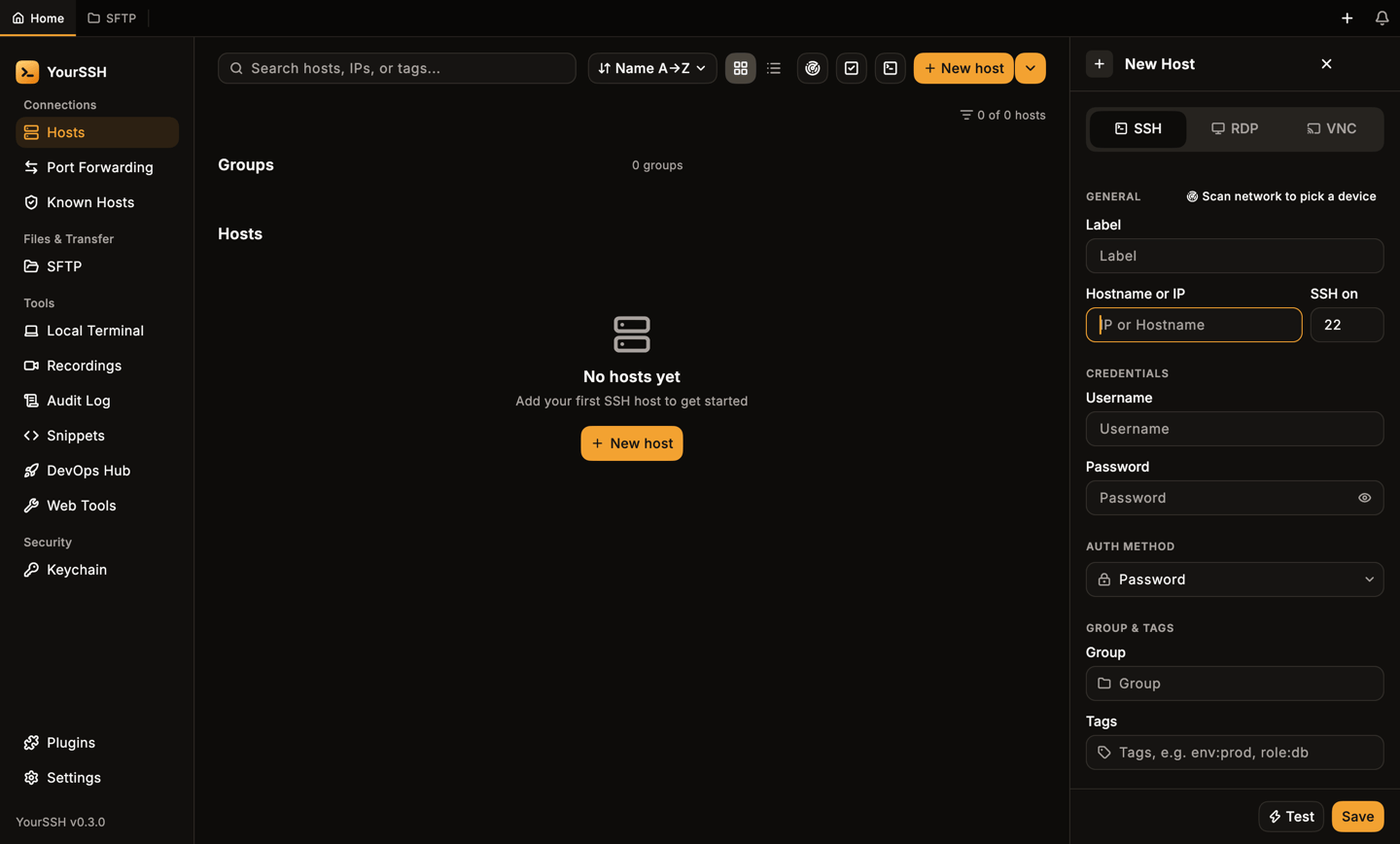
The host editor for an SSH host.
Protocol
The switch at the top selects SSH, RDP or VNC. Changing it swaps the sections below. The port changes to the protocol’s default (22, 3389, 5900) unless you already typed a custom port. RDP and VNC hosts hide the SSH-only sections. See RDP and VNC.General
Label is the display name. Hostname or IP and the port sit side by side. Tab moves through label, hostname, port and username.Credentials and auth method
Set Username and Password, then choose an Auth method: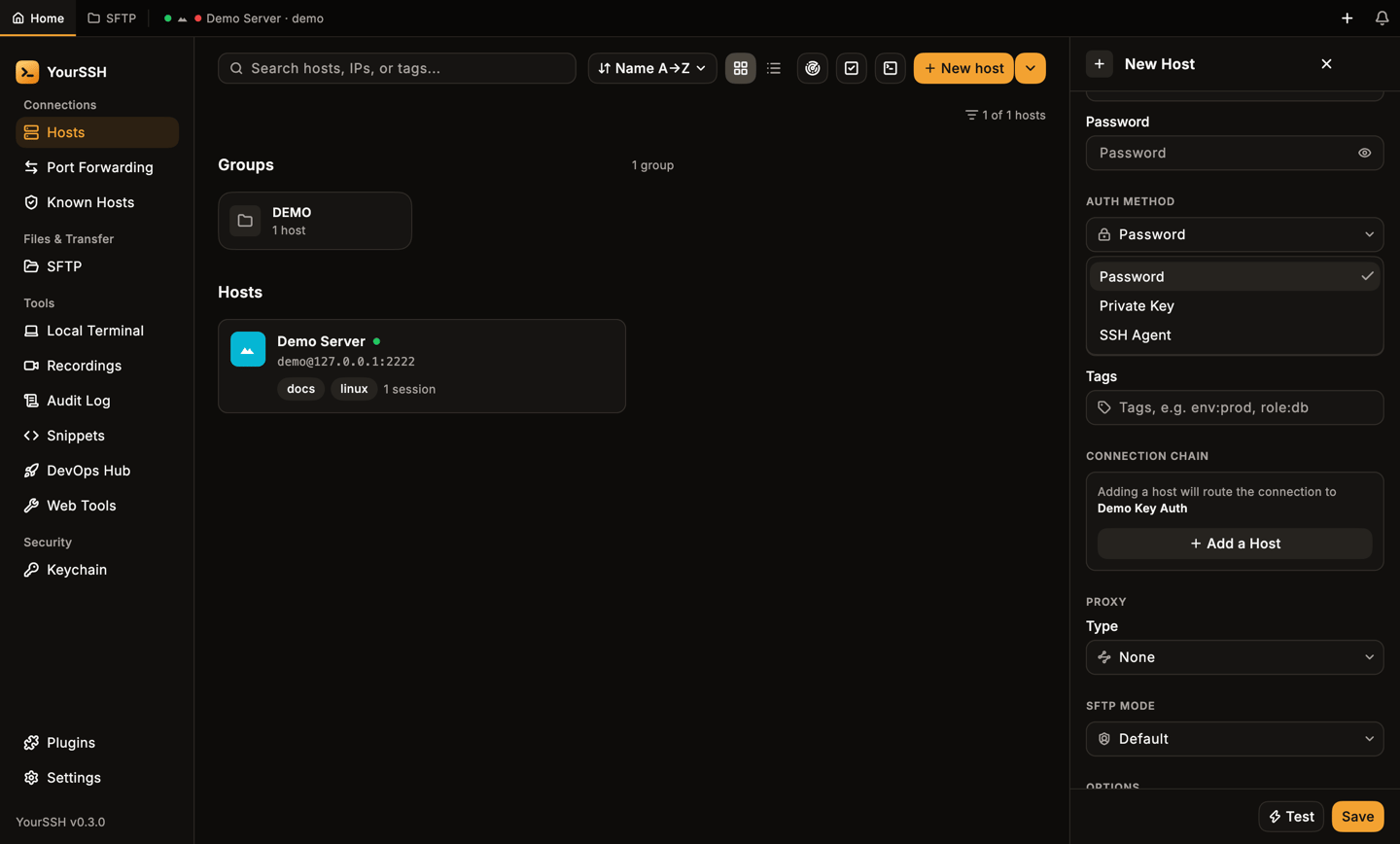
Choosing the auth method.
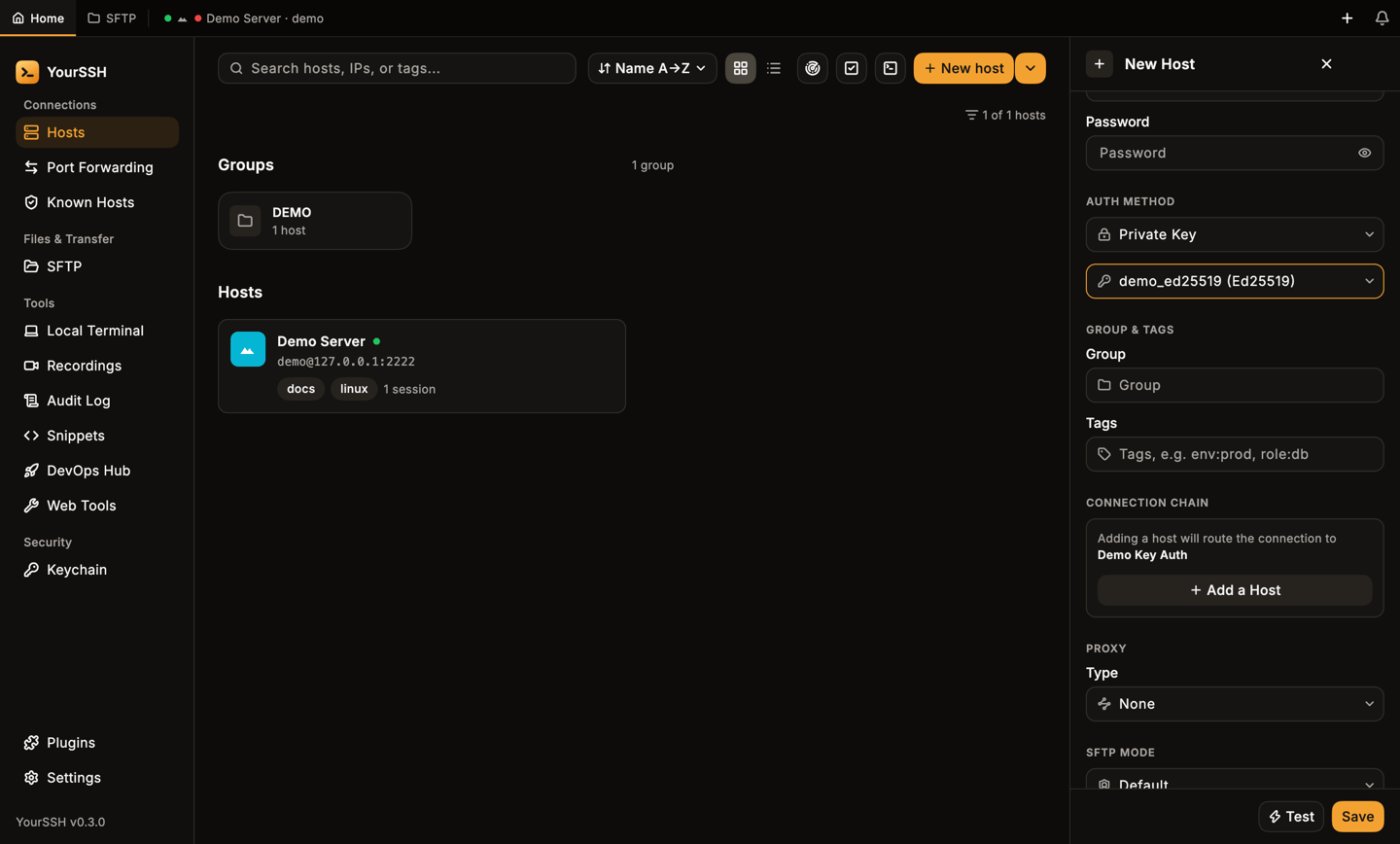
A host that uses a key from the Keychain.
Group and tags
Choose a Group and add Tags, comma separated. Usekey:value tags such as env:prod, role:db to get the search facets above.
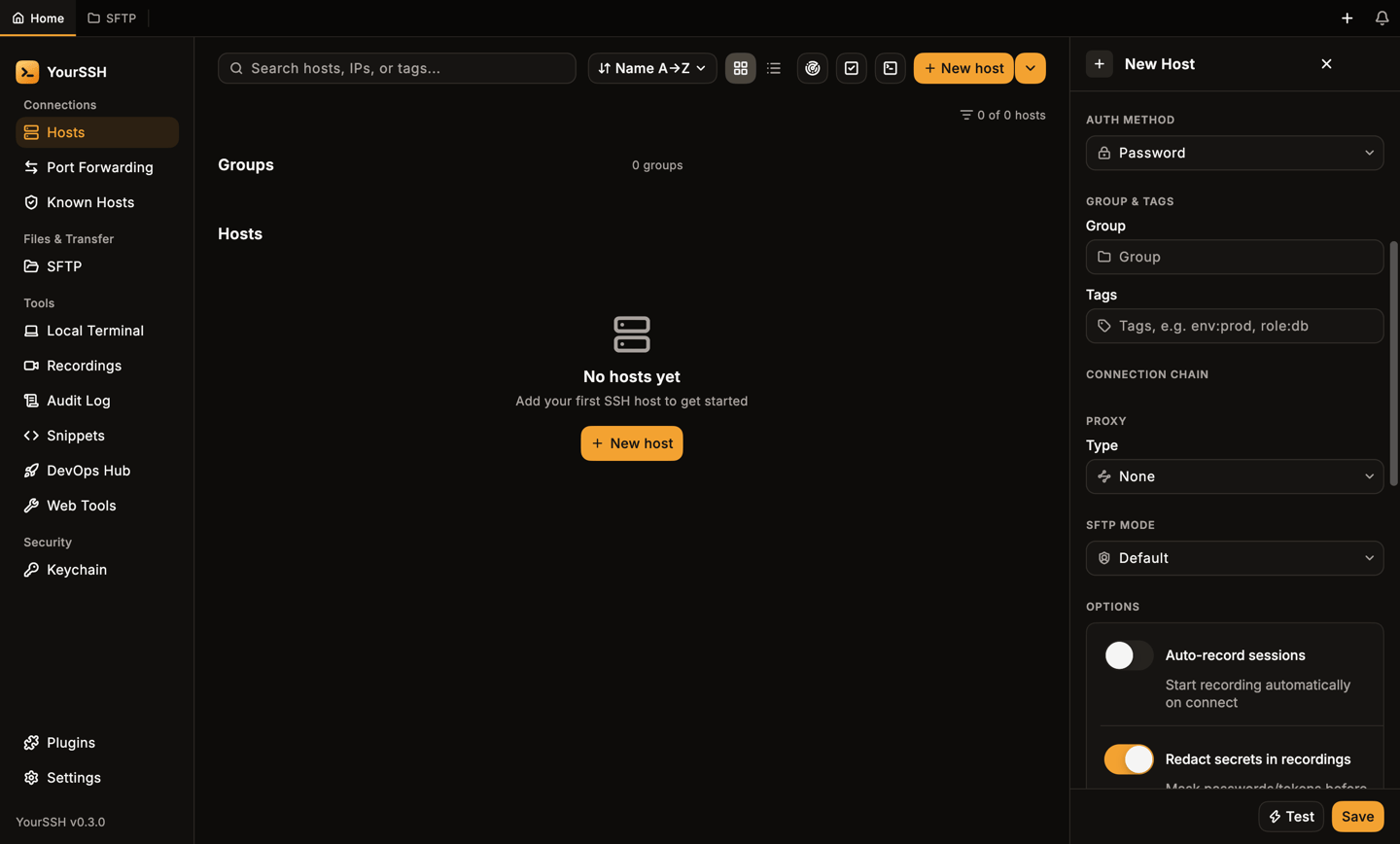
Group and tags.
Connection chain
The CONNECTION CHAIN section routes the connection through one or more jump hosts (bastions). Click Add a Host and pick a saved host. Repeat to add more hops. Each hop has a remove button, and Clear returns to a direct connection. Hosts already in the chain are not offered again, so you can’t create a loop.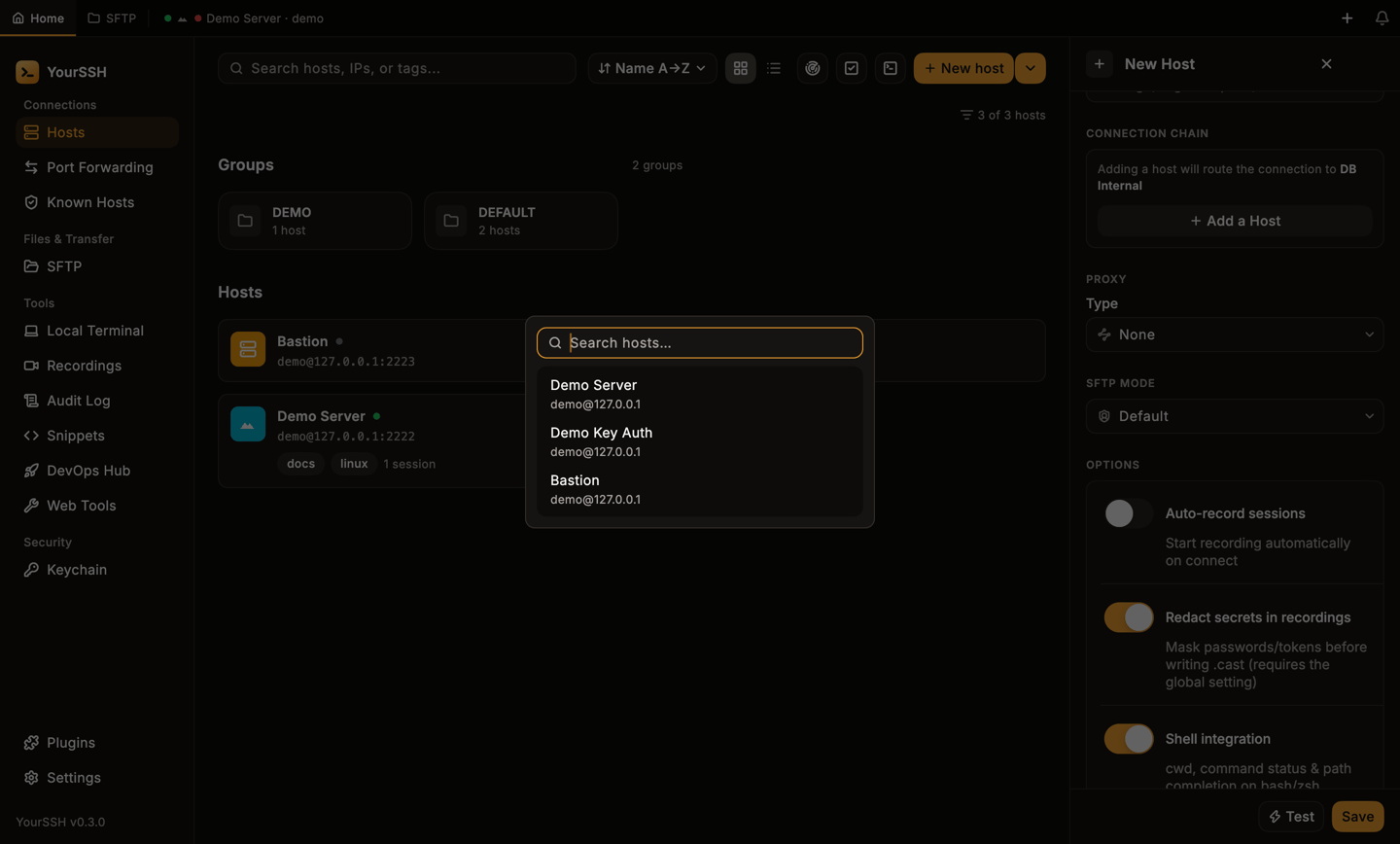
Picking a jump host.
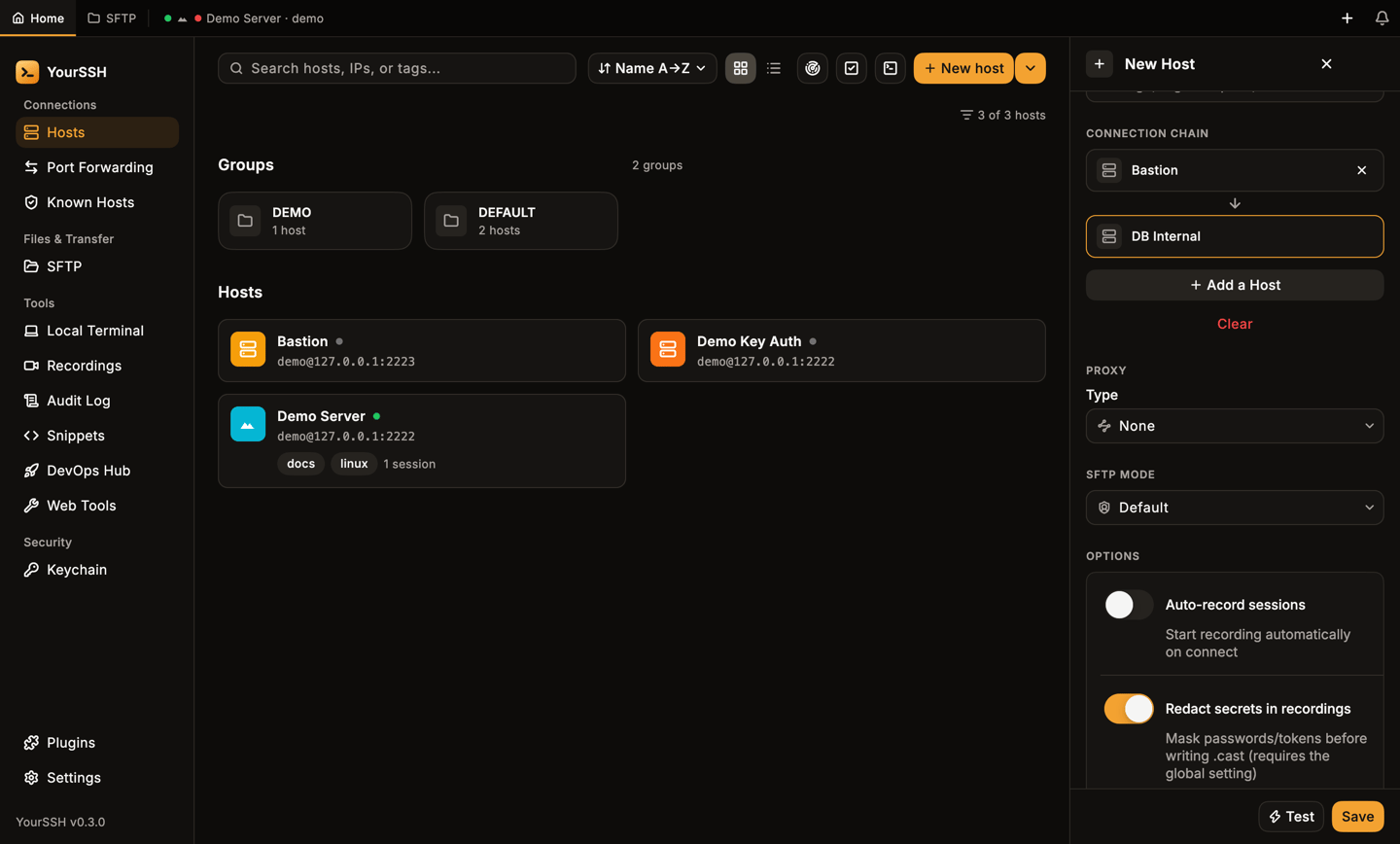
A chain with Bastion in front of the destination.
via and the first hop.
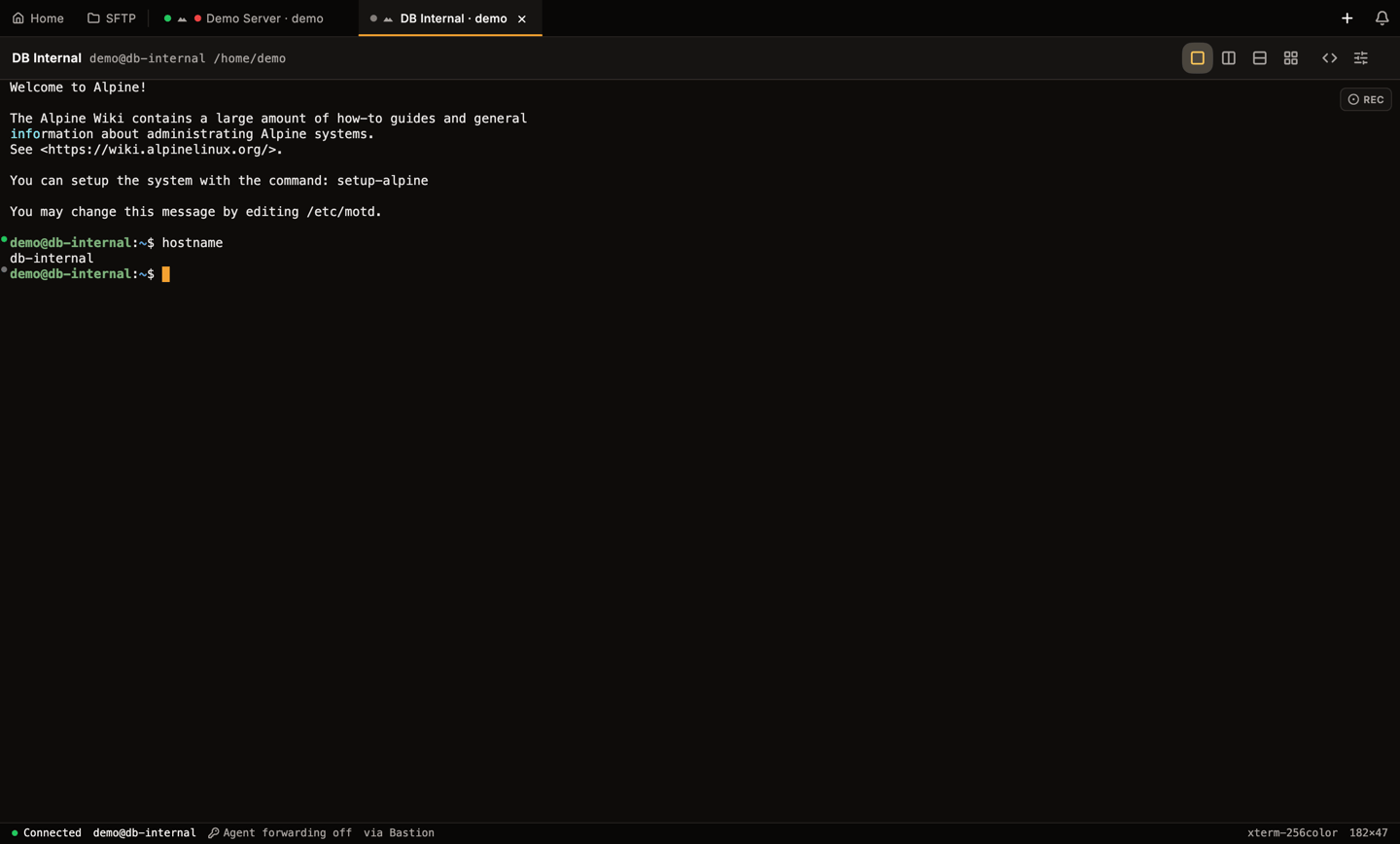
Connected through Bastion.
Proxy
The PROXY section sends the connection through an HTTP CONNECT or SOCKS5 proxy. Enter the proxy host, port and optional username and password. Leave it on None for a direct connection. The proxy password is stored in the system credential store.SFTP mode
SFTP MODE chooses how the file manager starts the SFTP server on the host:- Default: the normal SFTP subsystem.
- Sudo (root): runs the SFTP server with
sudo, so you can browse files owned by root. - Custom command: runs the command you enter, for example
sudo /usr/lib/openssh/sftp-server.
Options
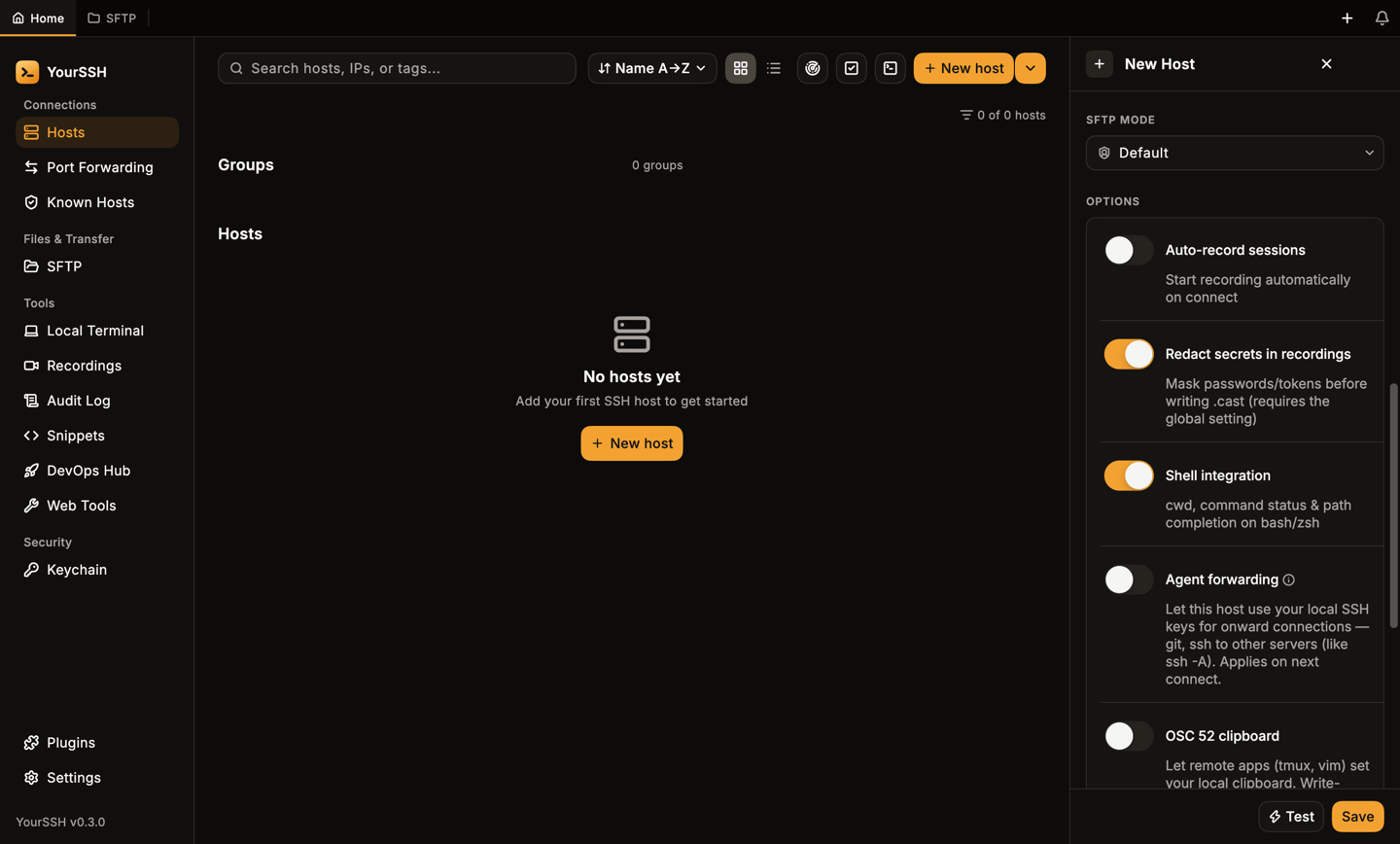
SFTP mode and per-host options.
When agent forwarding is on, a status line tells you whether YourSSH will use your system agent or fall back to Keychain keys. During a session, a key icon on the tab shows whether the host has asked for a key.
Session template
The SESSION TEMPLATE section sets up each new session on this host. All fields are optional, and an empty field follows your global settings.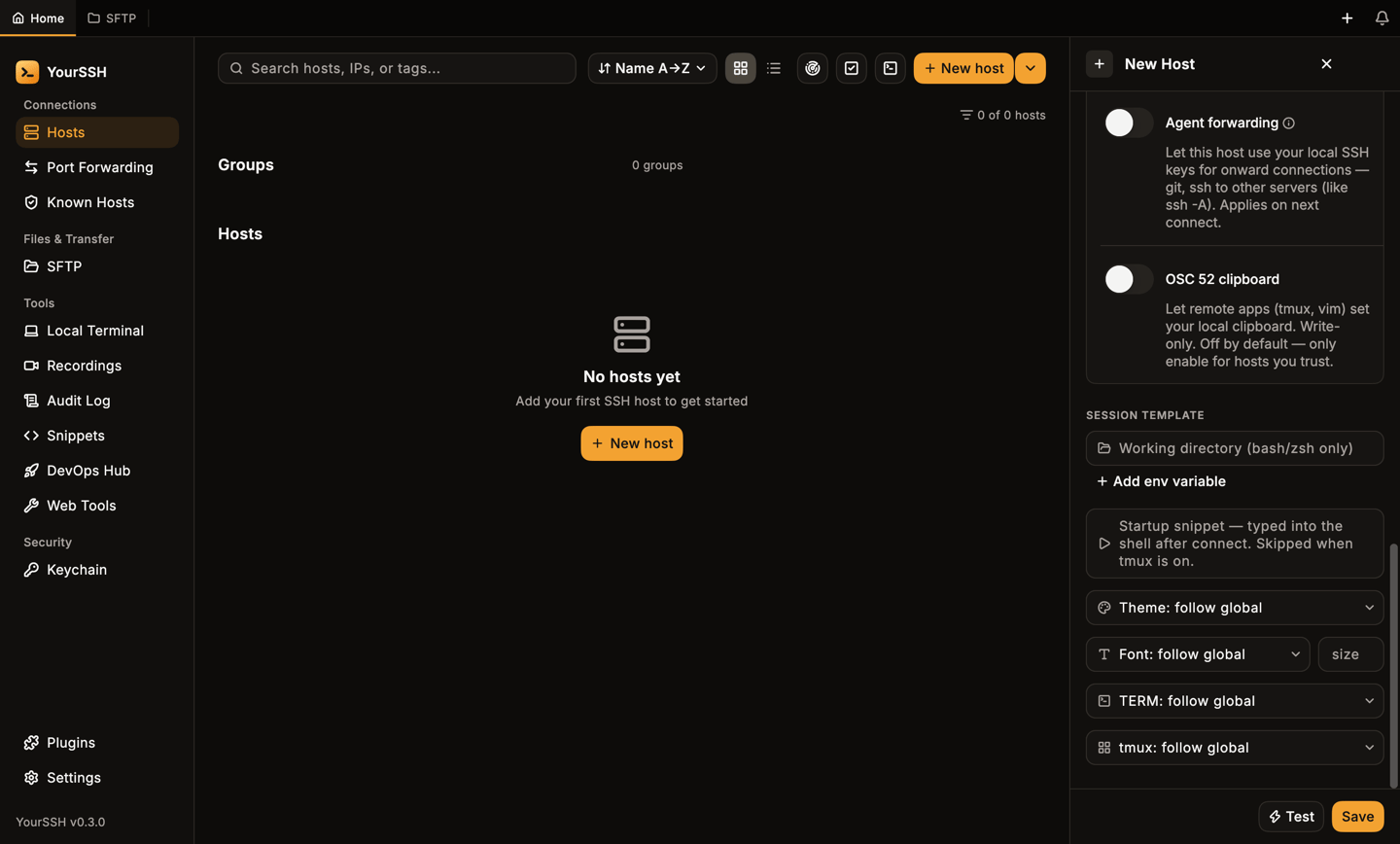
The session template.
- Working directory:
cdinto this folder on connect, without echo. bash and zsh only. - Environment variables:
NAME=valuepairs, exported invisibly. Names useA–Z,0–9and_only, and must be unique. bash and zsh only. - Startup snippet: text typed visibly into the shell after setup, as if you typed it. It shows in recordings and the audit log.
- Theme, font, size, TERM and tmux: per-host overrides. A distinct theme is handy for marking production hosts.
Validate, test, save, delete
The footer is always visible. Required fields show Required, and an out-of-range port shows Invalid (1–65535). The message disappears as soon as you fix the value.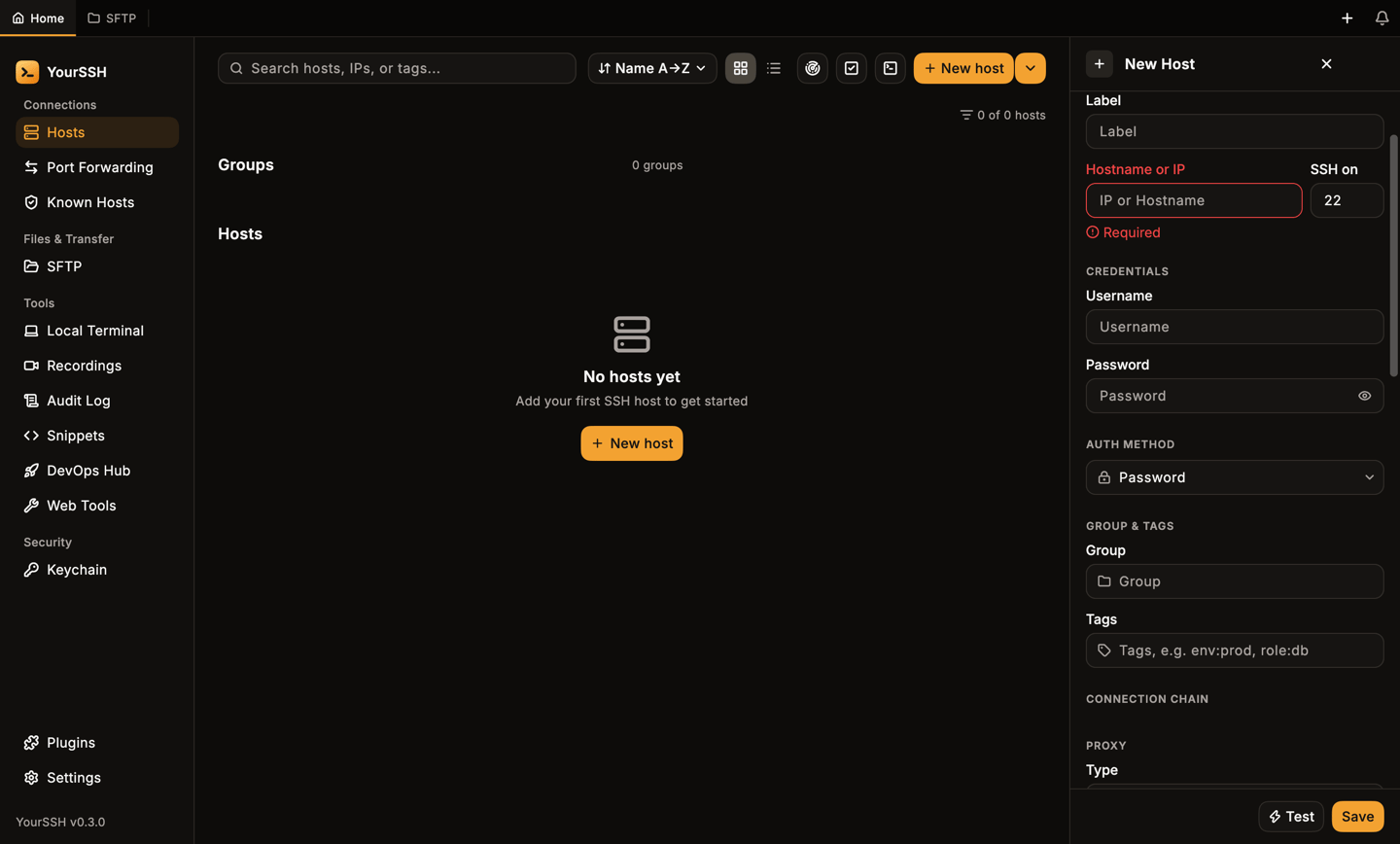
Saving with an empty hostname.
- Test (SSH only) connects and signs in without opening a shell. It shows Connected with the latency, or the error message.
- Save stores the host. For an existing host the button reads Save changes.
- Delete (existing hosts only) removes the host after a confirmation. Its stored password and proxy password are removed too.
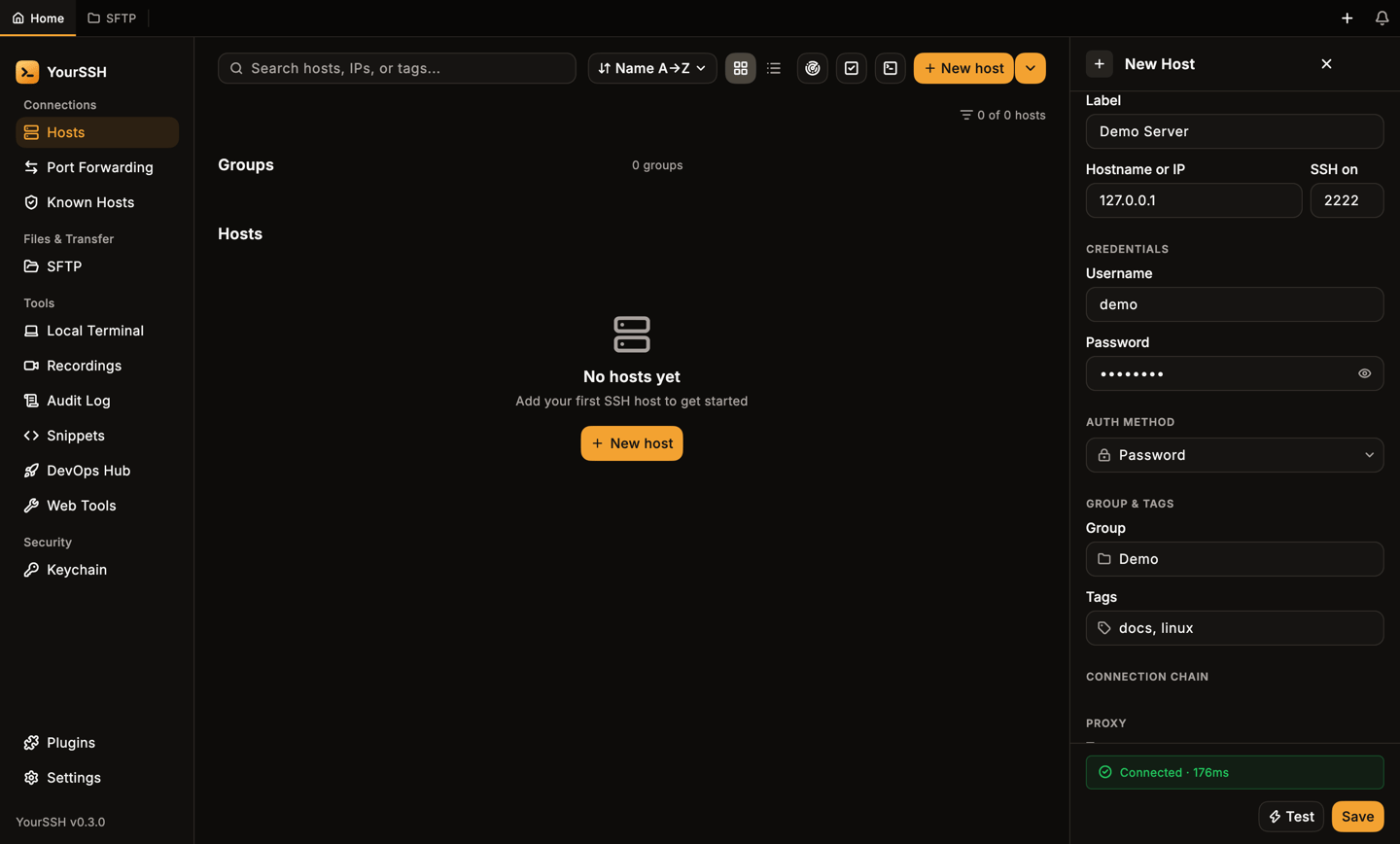
Test result.
Small windows
The editor, dashboard and terminal work down to the 800 by 600 minimum window size.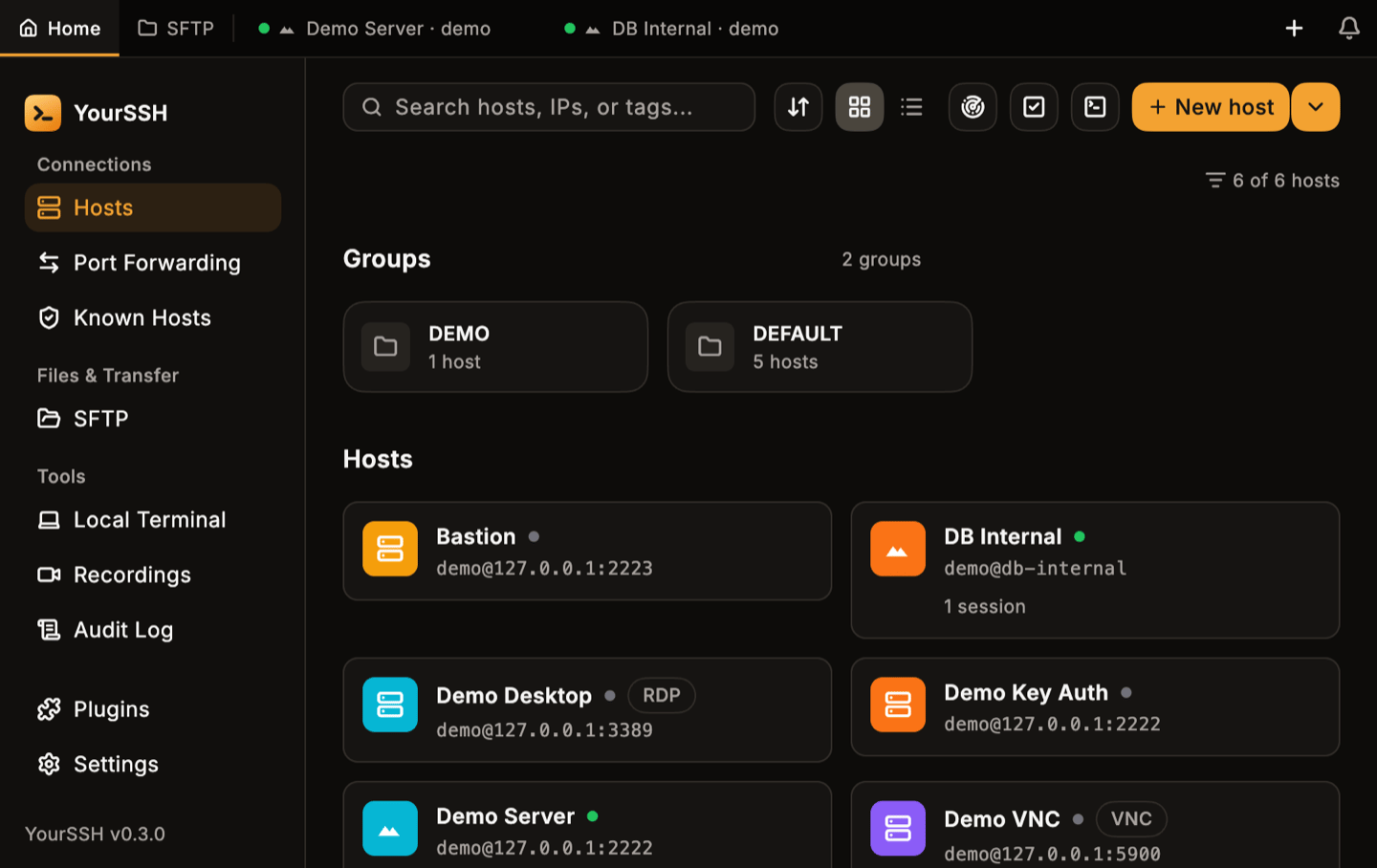
The dashboard in a 900 by 600 window.