

plugin.json manifest and a JavaScript entry file. You drop it into ~/.yourssh/plugins/. There is no build step and no app rebuild. For how the runtime loads plugins, enforces permissions and contains failures, see Plugin system.
Each plugin runs in its own isolated QuickJS runtime. The app injects a plugin object plus the ui, ssh, storage and console globals. You register handlers with plugin.on(event, handler), and the app calls them when something happens: terminal output, a session connecting, a command running.
Your first plugin
This plugin colorsERROR red in terminal output. It needs one permission, terminal.transform.
1
Create the folder
2
Write the manifest
Save this as
~/.yourssh/plugins/log-highlighter/plugin.json:3
Write the entry file
Save this as
~/.yourssh/plugins/log-highlighter/index.js:4
Approve it
Open Plugins in the sidebar, or restart YourSSH. A dialog titled Install “Log Highlighter” lists the requested permissions. Click Allow selected.
5
See it work
Open a session and run
echo ERROR. The word is red. Edit index.js and save: the plugin reloads on its own.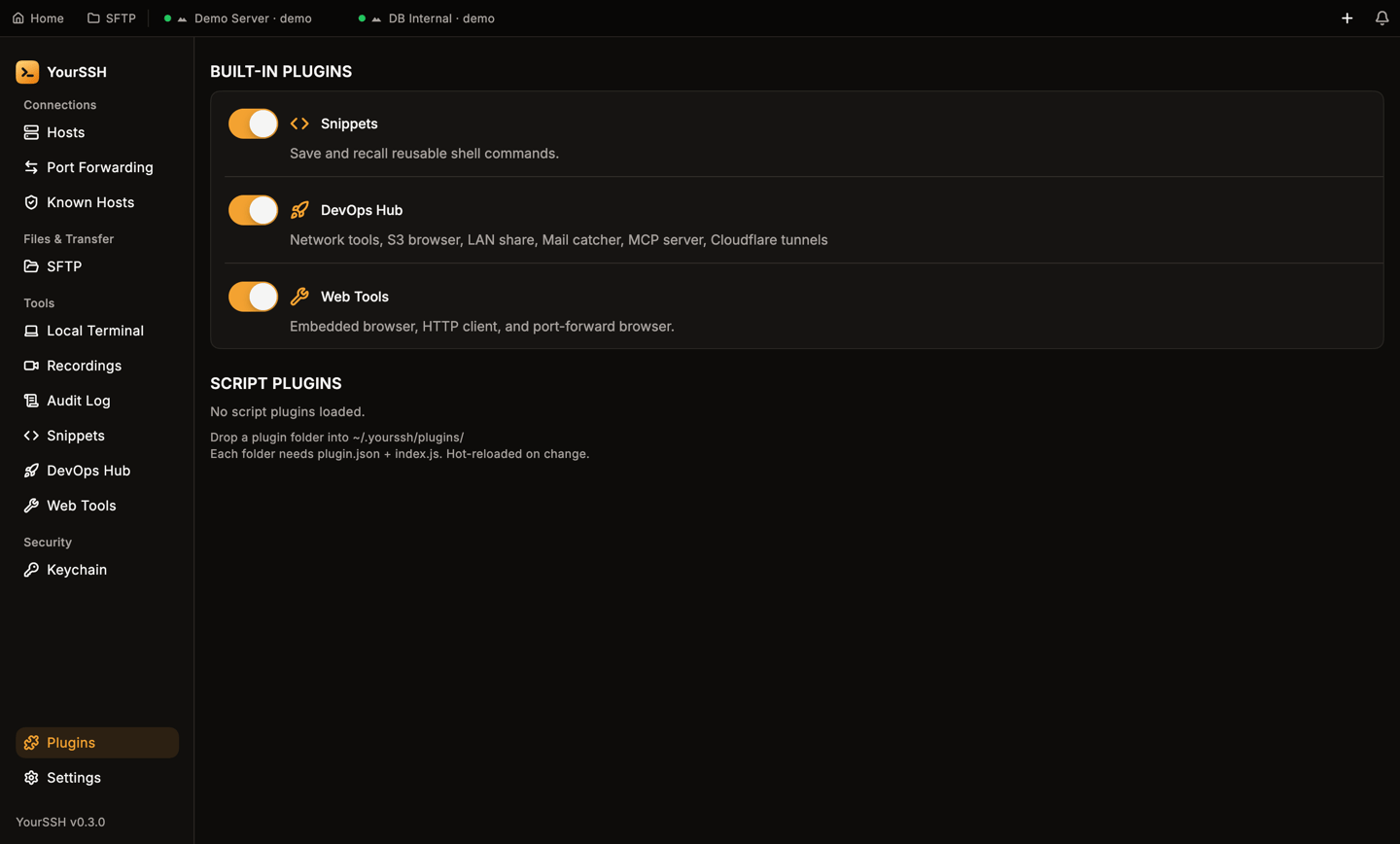
Script plugins appear under Script plugins in the plugin manager. The built-in plugins are listed above them.
If you change any file in the plugin folder after approving it, the app asks for consent again. See Consent.
Folder layout
plugin.json. The entry path and a panel’s webviewEntry must stay inside the plugin folder. Paths with ../, absolute paths and symlinks that escape the folder are rejected.
Manifest
An invalid manifest means the plugin doesn’t load.
Permissions
Declare only what you need. A plugin can call only the APIs whose permission the user approved.storage and console need no permission.
Consent
The first time a plugin loads, the app shows the consent dialog. You can untick individual permissions before you click Allow selected, and the plugin gets only the ticked ones. Deny keeps it from running.- Consent is bound to a SHA-256 hash of every file in the plugin folder. Change any file and the app asks again.
- Stored grants are intersected with the manifest’s current permissions, so editing the manifest can’t add a permission silently.
Hooks and events
Register a handler withplugin.on(event, handler). The handler receives one ctx object.
Return values:
- Return a string to replace the data (or the command).
- Return
falseto cancel, where the event can be cancelled. - Return nothing (
nullorundefined) to pass the data through unchanged.
Terminal events
terminal.output and terminal.input run for every chunk. Keep them synchronous and fast. Don’t do heavy work in them.
Session events
Command events
command.before and command.after fire for commands run through SSH exec (for example by a panel’s ssh-exec message). They don’t fire for what you type in the terminal.
Globals
ssh
There is no JavaScript
ssh.exec. To run a command and read its output, use the ssh-exec panel message.
storage
Persistent key-value store. It needs no permission and is namespaced per plugin id. Values are strings.
storage for anything that must survive.
ui
console
console.log, console.warn and console.error write to the plugin console. See Debugging.
There is no
sftp global in plugin JavaScript. A plugin with sftp.read can list and read remote files from panel HTML only. Writing, deleting and creating remote files isn’t supported.Panels
A panel is an HTML page your plugin shows inside the app. Register it fromindex.js:
ui.panel. The onMessage handler runs in the plugin’s JavaScript, so it must be synchronous.
From the panel HTML, call pluginBridge.send(message). It returns a promise with the reply. A panel’s own messages go to onMessage. The four native message types below are handled by the app, so they can run async SSH and SFTP work:
A failed call returns
{ type: 'error', message }. A panel is plugin-controlled HTML, so the app checks the same permissions on these messages as on the JavaScript APIs. Declare the permission in plugin.json, or the call is refused.
Lifecycle and hot reload
On start, the app scans~/.yourssh/plugins/, validates each plugin.json, asks for consent if needed, then runs the entry file, where plugin.on(...) registers handlers.
The app watches the folder. When a .js file or plugin.json changes, it unloads the plugin and runs it again from scratch. No restart. A reload also resets the plugin’s error count. You can also reload from the plugin manager.
Limits
The runtime enforces these on every plugin.
A call that goes over its time limit is aborted.
Circuit breaker
An error counts 1, a timeout counts 5, and a success resets the count. At 10 the app skips the plugin’s hooks and unloads it. Save a file to reload it and reset the count.Debugging
Open Plugins in the sidebar and click View logs on your plugin. The console showsconsole.log, console.warn and console.error output, ui.notify() messages and JavaScript runtime errors.
Test a plugin by creating the folder, approving it once, then editing index.js. Each save reloads it.
Common errors
Known limitations
Before you share a plugin
- Request only the permissions you use.
- Keep
terminal.outputandterminal.inputhandlers synchronous and fast. - Keep persistent state in
storage, not in variables. - Remove status bar items in
session.disconnect. - Test with no active sessions:
ssh.sessions()returns an empty array. - Remove noisy
console.logcalls. - Add a
README.mdthat says what the plugin does and why it needs each permission.